Last updated: November 18, 2026
Quick Answer: a Figma file status flow usually works with 3 clear labels—review, approved, and archived—plus one simple move rule for active work. In How to Set Up a Figma File Status Flow for Review, Approved, and Archived Work, the goal is to make the status obvious in 5 seconds or less so the design team can tell what is live, what is waiting, and what is done. If people still ask “Is this the latest version?”, the labels are too vague.
Key takeaways
- Use 3 visible states, not a long list of near-duplicates.
- Put the status in the file name or page name, not only in a comment.
- Make review handoff a single step with one owner, one note, and one deadline.
- Move approved work out of the active space fast enough that working files stay easy to scan.
- Keep archived files easy to find, but hard to confuse with active work.
What does a Figma file status flow do?
A Figma file status flow tells the design team whether a file is being edited, checked, signed off, or stored away. It gives working files, review status, approved status, and archived files a shared set of labels so nobody has to guess.
This is not the same as project governance or branch-based collaboration. It is a small operational layer for one file at a time, which makes it useful for teams that move quickly and need a visible system on the file itself. Figma’s own help center is the right place to check file and page behavior at a product level: Figma Help Center.
The flow is useful when several people touch the same file over a few days or weeks. It is less useful for a solo file that changes once a month, because the extra labels can become noise. In that case, 2 states may be enough: active and archived.
A good flow answers 3 questions at a glance. Is this file still being worked on? Has someone reviewed it? Can the team treat it as finished? If those answers are not obvious in under 5 seconds, the system needs tighter naming, not more meetings.
How do you set up the file statuses?
You set up the file statuses by choosing 3 labels, deciding where each label appears, and writing a move rule for each one. The point is to make the transition from working files to review status, then to approved status, and finally to archived files feel like one routine, not a debate.
Use this as the core procedure.
- Choose 3 file states. Use working, review, and approved, then reserve archived for files that are no longer active. This keeps the system small enough to remember without a cheat sheet.
- Decide the visible home for each state. Put active files where the design team looks first, and move archived files to a separate area or page. The difference should be obvious within 1 click.
- Pick one naming rule for the file title. Add the status label in the title or page name so the state is visible in the file list. A file called “Checkout flow — Review” is clearer than a file called “Checkout flow v7.”
- Assign one owner for the handoff. One person moves a file into review and one person marks it approved. If 3 people can move it, nobody owns the transition.
- Write the exit rule for each status. A file leaves review when feedback is resolved, leaves approved when it is replaced or superseded, and leaves active space when the team no longer needs it.
- Make the archive move boring. The archive step should take about 1 minute. If it takes a special request or a long checklist, people will skip it and leave old work in the active area.
Figma’s product pages and help articles can also help with file organization details, especially if the team uses pages as the main container for status labels: Figma. The setup works best when the rule is easy enough that someone can apply it without asking twice.
How do you label working files and approved files?
You label working files and approved files with a short, repeatable tag that appears in the same place every time. That tag can live in the file name, the page name, or both, but it should never be hidden in a note that only one person reads.
A practical pattern is to use the main file name for the project and the page name for the state. For example, a working page can be named “Work in progress,” a review page can be named “Review,” and an approved page can be named “Approved.” That keeps the title clean while still giving the file a visible status.
This is where page naming matters most. If the team uses 1 page per state, the page names need to be short and fixed. If the team uses only 1 page, the file name has to carry the status every time, which can get messy once there are 4 or 5 active versions.
The rule is simple: do not let two labels mean the same thing. “Final,” “Approved,” and “Done” sound close, but they create 3 different meanings. Pick 1 approved status and use it everywhere. If a file is approved, it should not still look like a draft just because the title was never updated.
What should happen at review and approval?
Review should capture comments in 1 pass, and approval should close the loop in 1 clear move. That means the review status is not a parking spot for undecided work; it is a short handoff where feedback gets resolved and either accepted or rejected.
The cleanest review handoff has 3 parts: the owner, the question, and the due date. The owner posts the file, the question says what needs review, and the due date tells the design team when to stop waiting. Without that structure, review can stretch from 1 day to 2 weeks because nobody knows when the file is ready to leave.
Use a simple review gate:
- The file is in review because comments are open.
- The owner resolves feedback or marks the comment as not needed.
- The reviewer confirms the final state.
- The file moves to approved only after the last change is in place.
Approval should mean the file is usable as-is for the next step in the workflow. If the team still expects edits after approval, then the label is wrong. A file that is “approved unless someone spots a typo” is still in review.
The hardest part is social, not technical. The design team has to treat approved status as a real stop, not a softer version of “almost done.” If your team is unsure how Figma should handle this, consult a design-ops or product specialist and check the Figma Help Center: Figma Help Center. That matters because a status flow loses trust fast when approved files keep changing in the same place.
When should a file be archived?
A file should be archived when it is no longer an active reference for the design team and no one expects new edits in the same working file. That usually happens after approval is complete and the work has been handed off, replaced, or folded into a newer file.
Archiving is not the same as deleting. Archived files still matter because someone may need to inspect a decision, compare 2 versions, or find a screen later. The goal is to remove the file from the active path, not erase it.
A simple archive rule works well:
- The file has been approved.
- The current work has moved to a newer file or newer page.
- No one plans to edit the file in the next 30 days.
- The file is still worth keeping for reference.
That 30-day window is not a law; it is a practical cutoff that helps the team avoid keeping old work in the active area. A smaller team may use a shorter window, and a larger team may use a longer one. The key is that the archive rule is written down before the file pile gets noisy.
Do not archive anything the team still opens every week. If people keep hunting in archived files for live assets, the archive is doing the wrong job. In that case, the file may need a better name, a clearer approval step, or a split into 2 separate files.
What mistakes break this flow?
The biggest mistake is using too many labels for the same state, which turns a 3-step flow into a 6-step argument. “Draft,” “working,” “WIP,” and “in progress” may all sound useful, but they make it harder to tell what changed and who should act next.
A second mistake is hiding the status in a comment thread. Comments are easy to miss and easy to misread after 2 days. A status that matters should be visible in the file name, page name, or another place the design team sees without opening a discussion.
A third mistake is letting approved files sit beside active work forever. That costs time because people keep opening old files by mistake and asking whether they are current. Moving approved work to archive keeps the active space cleaner and makes the next review cycle easier to scan.
A fourth mistake is making archive rules too strict. If archiving requires 7 steps, nobody will do it. Keep the rule short enough that someone can finish it in under 2 minutes and still get back to real work.
This flow is not for teams that want heavy process for its own sake. If the file changes constantly and nobody needs a clear sign of review or approval, the extra labels will slow the group down.
How does this support a larger Figma workflow?
It supports a larger Figma workflow by keeping one file’s life cycle visible without turning the whole project into a control system. The status flow sits under the broader Figma design workflows hub and handles the day-to-day movement of working files, review status, approved status, and archived files.
That matters because file-level clarity reduces the time spent asking basic questions. When a file says what it is, the team can spend its attention on the design itself. In a small team, that might save only a few minutes at a time; across 10 or 20 files, it keeps the workflow readable.
The limit is also clear. This page is not the place to solve branch strategy, design-decision history, or project-wide governance. Those need different rules and a different page. Here, the job is narrower: make the status of each file obvious, stable, and easy to move.
If the team needs one sentence to remember the rule, it is this: every file should look active, reviewed, approved, or archived, and never all 4 at once.
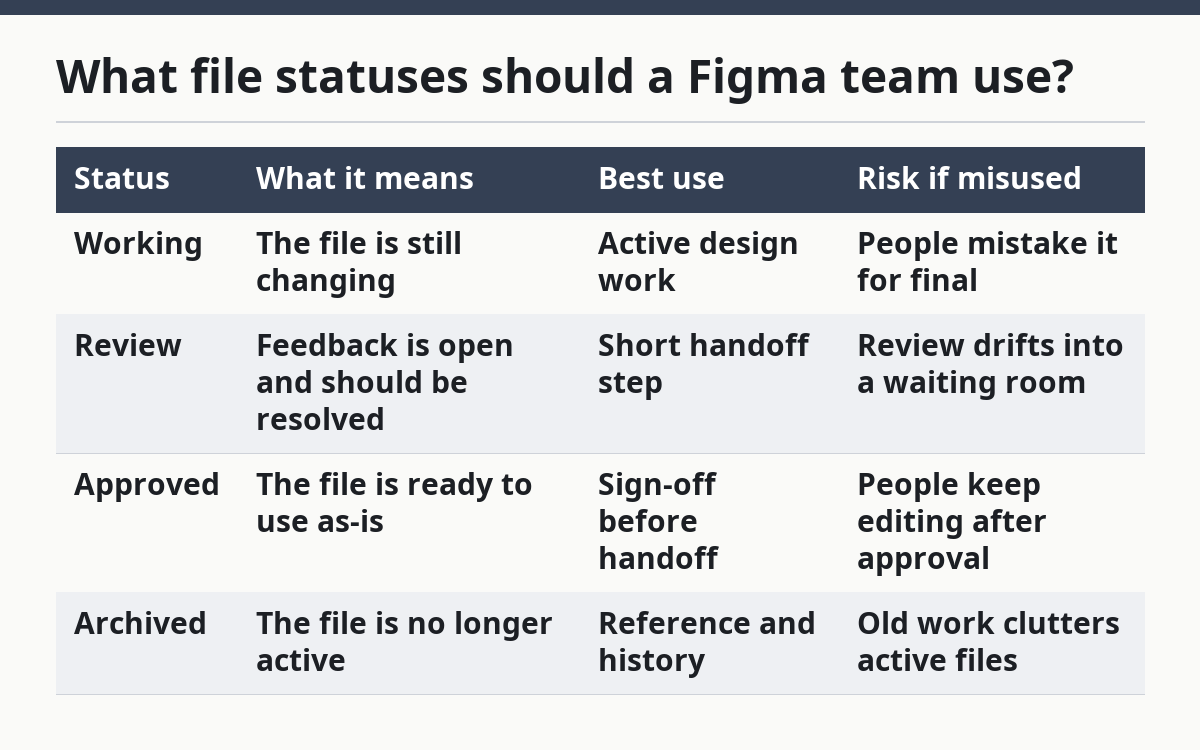
What file statuses should a Figma team use?
A Figma team should use the fewest statuses that still answer the question “what happens next?” For most file flows, 3 states are enough: review, approved, and archived, with working files treated as the active state before review. More labels usually make the system harder to read, not easier. If a team needs a different setup, consult a workflow specialist and verify the current Figma behavior in the Figma Help Center.
| Status | What it means | Best use | Risk if misused |
|---|---|---|---|
| Working | The file is still changing | Active design work | People mistake it for final |
| Review | Feedback is open and should be resolved | Short handoff step | Review drifts into a waiting room |
| Approved | The file is ready to use as-is | Sign-off before handoff | People keep editing after approval |
| Archived | The file is no longer active | Reference and history | Old work clutters active files |
How do you label work-in-progress and approved files?
You label work-in-progress and approved files with one fixed naming rule that appears in the same spot every time. Page names work well for this because they stay visible while the file stays open, and they can clearly separate active work from approved status without adding extra clutter.
When should a Figma file be archived?
A Figma file should be archived when it is approved, no longer being edited, and no longer needed in the active workspace. If the team still opens it often, it is too soon to archive. A good archive rule keeps old work available without letting it crowd the files that still need attention. If the team is unsure, consult a product or design-ops professional and confirm the current file behavior in the Figma Help Center.
Drafted with AI; not yet reviewed by a person.