Last updated: November 20, 2026
Quick answer: A Figma design system intake for new component requests works best as a structured form, weekly triage, and shared review with design, engineering, and QA; in practice, teams usually aim for a 48-hour acknowledgment and a 14-day delivery target for approved elements.
To run a Figma design system intake process for new component requests, collect every submission through a structured intake form, triage requests weekly against clear reusability rules, and reject any one-off pattern that serves only a single screen. Setting a hard gate at the intake stage keeps the core Figma library clean, reduces component duplication across product teams, and helps engineers build only shared assets that teams actually reuse.
This operational intake workflow supports the broader Figma design workflows hub by stopping design debt before raw assets enter your central libraries.
Key takeaways
- Require a standard submission form before reviewing any component, button variation, or layout block.
- Filter submissions across three paths: build a new shared component, add a variant to an existing component, or keep it local to a single product file.
- Assign dedicated review seats to product design, engineering, and QA to verify technical feasibility before moving to library production.
- Measure request intake with a 48-hour acknowledgment rule and a 14-day delivery target for approved elements.
What is a design system intake process?
A design system intake process is a structured operational pipeline that receives, reviews, and filters requests for new components before they enter a shared Figma UI library. Without an intake process, UI libraries can decay within 6 to 12 months as individual designers add bespoke variants directly into production files. The intake step acts as the filter between product feature teams and the core platform team.
[Designer Request]

       │

       ▼

[Intake Form] ──(Missing context?)──► [Returned to Submitter]

       │

       ▼

[Weekly Triage]

       ├─► Reject (Single-use / Local Component)

       ├─► Modify (Add Variant / Update Properties)

       └─► Accept (New Core Component to Backlog)
Direct Figma edit access can cause component sprawl. When ten product designers work in isolated product files, they may draw ten distinct date pickers, three differing modal window styles, and dozens of redundant button states. When these one-off elements bypass a formal review, library maintainers can lose a large share of sprint capacity to breaking component updates and detached dead variants.
A formal intake process replaces ad-hoc Slack messages, direct Figma canvas comments, and informal hallway requests with a single system of record. It treats the Figma library like production software, which is a useful rule of thumb for teams, but for implementation details you should consult your design and engineering leads. Every incoming pattern must prove that it solves an unmet user need, adheres to layout standards, and meets the accessibility requirements defined in W3C WCAG 2.1 guidelines.
What fields belong on a component request form?
A component request form must contain between 6 and 9 required fields that collect the functional context, business rationale, and visual references for the proposed element. Leaving the form open-ended leads to vague requests like “we need a new card,” which forces system librarians to spend hours chasing requirements.
Every submission must document the underlying user interaction, not just a static frame. To ensure the design system team receives comparable data across every submission, the form must capture these exact fields:
- Component name and category: A short, descriptive name (e.g., “Inline Banner”, “Multi-Select Combobox”) classified under basic inputs, layout elements, navigation, or feedback displays.
- Problem statement: A concise summary of the specific user task the component enables that current library components cannot handle.
- Link to Figma source file: A direct link to a Figma frame showing the proposed component placed inside an actual product layout, not isolated on a blank canvas.
- Usage frequency across teams: A checklist specifying whether this component will appear in 1, 2, or 3 or more distinct user flows across different product domains.
- Interactive states and variations: Documentation of expected states, including default, hover, focused, disabled, loading, and error.
- Engineering sponsor: The primary frontend engineer who will build or review the production code counterpart alongside the Figma component.
Setting these fields as mandatory can help prevent feature teams from using the design system team as an ad-hoc production service, but you should confirm the policy with your own product and design leads. If an author cannot name an engineering partner or demonstrate use across multiple views, the submission remains a local component within their own product file.
How do you evaluate a new Figma component request?
You evaluate a component request by scoring its potential reusability across screens, its impact on library complexity, and its technical feasibility across web or mobile codebases. The central triage question is never “is this a good design?” The question is “does this pattern belong in the shared core library?”
Use a simple three-tier decision rule to triage every ticket:
- Local component (Rejection for shared library): The component appears in only one feature workflow and serves a hyper-specific business logic. It stays in the feature team’s local Figma file.
- Component variant (Update to existing component): The proposed pattern matches an existing component’s intent but requires a new size, an icon slot, or an updated boolean property. It is merged into an existing master component set.
- New core component (Acceptance): The pattern solves a recurring problem found on at least 3 distinct product surfaces, has zero functional overlap with current library elements, and can be maintained centrally.
| Metric | Local Component (Reject) | Component Variant (Update) | New Core Component (Accept) |
|---|---|---|---|
| Cross-product usage | 1 product view | 1 to 2 feature surfaces | 3 or more distinct areas |
| System maintenance cost | 0 hours (team owns it) | 1 to 4 hours | 8 to 24 hours |
| Figma architecture | Local component frame | Added variant / boolean property | New master component set |
| Code duplication risk | Low (isolated logic) | Medium (extends existing component) | High (if uncoordinated) |
| Review SLA | Immediate self-service | 5 working days | 14 working days |
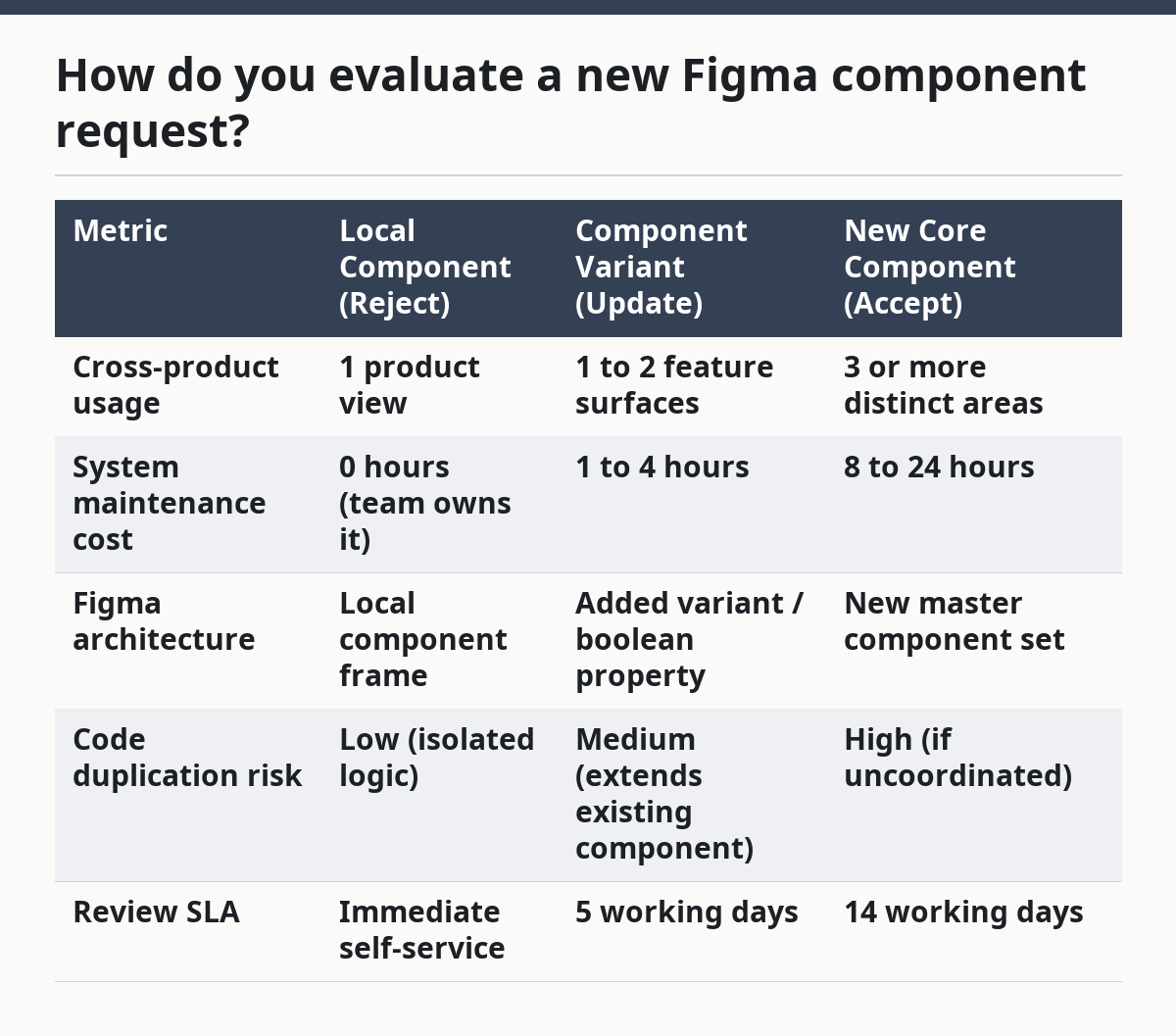
This evaluation stops library bloat. Adding a new component introduces long-term maintenance costs: documentation, variant testing across nested Auto Layouts, token mappings, accessibility audits, and ongoing engineering updates. If a pattern does not cross the threshold of 3 distinct use cases, the design system team defers building it.
What are the step-by-step stages of a Figma intake workflow?
A Figma intake workflow moves through five linear stages from the initial form submission to the moment an approved component enters the production library backlog. Running this pipeline requires a disciplined triage cadence and clear status definitions.
Stage 1: Ingestion & Receipt (0 - 48 Hours)

   │

Stage 2: Technical Triage (Weekly 45-Minute Session)

   │

Stage 3: Functional Scoping & System Alignment

   │

Stage 4: Sandbox Production & Token Review

   │

Stage 5: Backlog Handoff & Version Release
- Submission and automated intake confirmation: The designer submits the component request form through your project tracker (such as Jira, Linear, or Asana). The tracking system automatically assigns an intake ticket, tags it with a “Needs Triage” status, and notifies the submitter that the review cycle takes a maximum of 48 hours for initial confirmation.
- Weekly intake triage review: The design system maintainers run a weekly 45-minute triage session to review tickets tagged “Needs Triage”. The review team spends no more than 5 minutes on any single ticket, assessing whether the request meets the 3-use-case threshold, checks for existing library duplicates, and verifies that the Figma preview link displays responsive Auto Layout behavior.
- Figma sandbox architecture review: If approved, the ticket moves to “In Sandbox” status. The request author or a design system designer builds the component inside a dedicated sandbox branch in Figma. The component must adhere to defined design tokens (spacing units based on an 8px grid, semantic color tokens) and follow accessibility structure from the W3C WAI-ARIA Authoring Practices.
- Cross-functional sign-off: The sandbox branch undergoes a formal inspection. The design system designer checks variant property naming conventions (using standard names like
Size,State, andType), the frontend engineer checks property-to-code alignment, and QA validates keyboard navigation and high-contrast color visibility. - Backlog routing and component release: Once all three disciplines approve the sandbox file, the ticket moves to “Ready for Library Build.” The master component is merged into the primary Figma UI library file, published using semantic versioning notes, and scheduled in the engineering sprint backlog for code production.
Who owns decisions at each stage of the intake process?
Decisions throughout the intake process belong to a shared triad: product design, engineering, and QA. When a design system team operates solely as a design-focused group, they can build Figma components that engineers cannot cleanly implement in CSS, React, or mobile UI frameworks.
┌───────────────────────────────┐

       │   Intake Decision Triad       │

       └──────────────┬────────────────┘

                      │

     ┌────────────────┼────────────────┐

     ▼                ▼                ▼

[Product Design]  [Engineering]      [QA]

Visual hierarchy  Code parity        Keyboard navigation

Token binding     DOM complexity     WCAG contrast

Auto Layout       Performance        Focus management
Product design ownership
The design lead evaluates visual hierarchy, token consistency, and interaction logic. This reviewer ensures the proposed element uses established color, typography, and spacing variables rather than custom hex codes or detached styles. They inspect the Figma file to verify that the element resizes predictably across horizontal and vertical axes using Auto Layout rules.
Engineering ownership
The engineering lead evaluates parity between Figma’s component properties and the production code repository. They flag performance liabilities, DOM hierarchy complexity, and layout logic that could cause rendering bottlenecks in browser or mobile clients. The engineering lead also checks whether the component can be created by wrapping existing code primitives instead of writing new code from scratch.
QA and accessibility ownership
The QA reviewer audits the component against accessibility baselines and interaction edge cases. This reviewer verifies that states include visible focus indicators, interactive target dimensions meet minimum boundaries (at least 24x24px, and ideally 44x44px for touch interfaces), and text scaling functions correctly without truncating critical labels.
What are the common intake mistakes and what do they cost?
Operating an intake process exposes teams to several structural failure modes. When teams handle intake incorrectly, they slow down delivery across the organization, alienate product designers, and degrade file performance across Figma canvas files.
Mistake 1: Accepting raw designs directly into the core library
Accepting raw, unvetted Figma files directly into a published library causes system instability. Designers often build components without standardized Auto Layout frames, omit required hover or focus states, and use detached color values. When these elements publish to hundreds of active project files, they break existing instances and force manual cleanup sprints that cost days of engineering and design time.
- What to do instead: Require every component to run through a sandbox file that must pass an architectural checklist before it can be merged into a release branch.
Mistake 2: Operating as an intake “black hole”
A submission form where tickets go without updates for weeks destroys trust in the design system team. When product designers submit detailed forms and wait 20 days without feedback, they stop using the intake pipeline. Instead, they detach existing components and build unvetted, custom components in their private work files.
- What to do instead: Enforce a strict service-level agreement (SLA) of 48 hours for the first review response, and close or approve all triaged requests within 10 working days.
Mistake 3: Turning intake into an overly bureaucratic roadblock
An intake form that requires 25 inputs, architectural diagrams, and sign-offs from three vice presidents paralyzes product velocity. Feature teams operating on two-week release cadences cannot afford a four-week review process just to get a minor variation of an input field approved.
- What to do instead: Keep the form lean, asking only for the component name, intended use case, screenshots, and a link to the source Figma file. If a request needs more context, move the follow-up into a comment thread rather than forcing everyone through a larger form.
Mistake 4: Skipping version control and change logs
Even a well-run intake pipeline fails when there is no visible record of what changed, why it changed, and who approved it. Without version notes, teams cannot tell whether a button update is a spacing fix, a visual refresh, or a breaking change. That ambiguity leads to duplicate work, accidental overrides, and inconsistent usage across files.
- What to do instead: Use a clear release log for every component update, and label each change as patch, minor, or breaking. Pair that log with a simple approval trail so designers can trace decisions quickly.
A disciplined Figma workflow automation process is not about adding friction; it is about making the right path the easiest one to follow.
Drafted with AI; not yet reviewed by a person.