Last updated: November 18, 2026
A good Figma file access model gives the right people view access or edit access without making every file public to the whole company. The cleanest setup for cross-functional teams is usually role-based: owners, editors, viewers, and a small group that controls share settings and team permissions.
Key takeaways
- Start with the work, not the org chart: decide who edits, who reviews, and who only needs view access.
- Keep edit access narrow. Most people do not need it on every file, even in cross-functional teams.
- Use team permissions and file ownership together. One without the other leaves gaps.
- A shared file is not the same as a shared working area. Separate draft work from reference files when possible.
- The safest setup is simple enough that someone can explain it in one minute.
What should a Figma file access model do?
A Figma file access model should decide who can see, change, and share each file before the work starts. It exists to stop three common problems: too many editors, unclear ownership, and files that drift between teams without a clear rule.
For cross-functional teams, the model has to work across design, product, engineering, research, and marketing. A designer may need edit access on a live sprint file, while a product manager only needs view access for review. A developer may need comment-level visibility on one file and edit access on another. If everyone gets the same level by default, the model is too loose.
This is where Figma file permissions matter. The file itself needs one access rule, the team space needs another, and the person who owns the file needs a third. If those three do not line up, people start sharing files by link and hoping for the best. That is how access spreads beyond the people who actually need it.
A practical model also has to be small enough to run every day. If it needs a 12-step approval chain, it will fail the first time a team is under deadline. The better choice is a plain rule set: who owns the file, who can edit it, who can only view it, and who can change the share settings.
How do I decide who gets edit access?
You decide who gets edit access by assigning it only to the people who actively change the file as part of their job. That usually means the core builders of the work, not every stakeholder attached to the project.
A simple way to sort people is by the job they do in the file:
| Access level | Best for | What they can do | Main risk |
|---|---|---|---|
| Edit access | Core designers, assigned collaborators, file owner | Change frames, components, pages, and content | Unplanned edits |
| View access | Stakeholders, reviewers, leadership, adjacent teams | See the file without changing it | Feedback without context can still be noisy |
| Share-control access | File owners, team admins, a small ops group | Change share settings and permissions | Over-sharing if too broad |
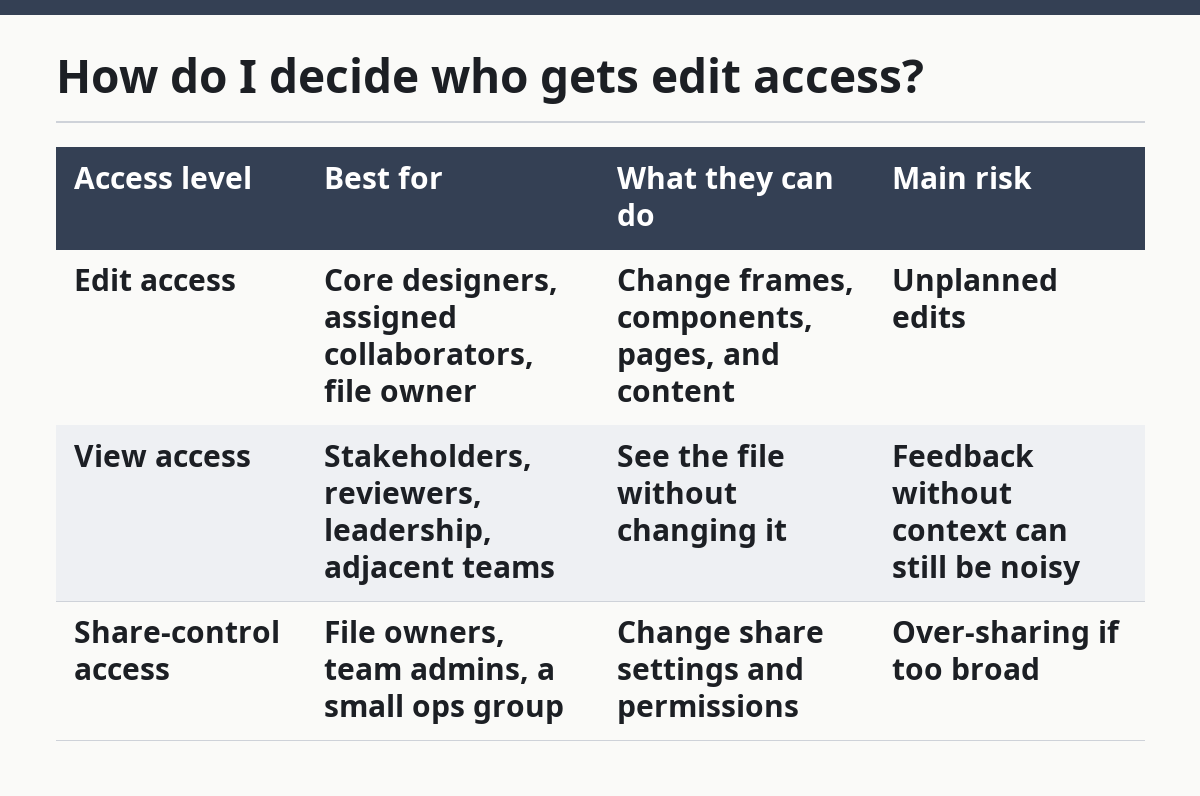
That table is the heart of the model. Edit access should be the narrowest group in the file. View access can be wider, but it should still be intentional. Share-control access should be tighter than edit access, because the person who changes permissions can affect the whole file in one move.
The trade-off is speed. A broader editor set reduces bottlenecks in a busy sprint, but it also raises the chance of accidental edits, duplicate work, or a component being changed by someone who did not mean to touch it. That is why the model should be different for a launch file, a reference file, and a working file.
A rule that works in many cross-functional teams is this: if a person needs to change the design artifact itself, give edit access; if the person only needs to review, comment, or approve, keep them at view access. That is stricter than many teams want at first, but it prevents the file from turning into a shared scratchpad.
What is the safest way to set share settings?
The safest way to set share settings is to make the file private by default and open access only by named people or controlled team settings. That keeps the file from drifting into link-sharing culture, where anyone with the URL can get in.
Start with the file owner. The owner should be the person or role responsible for the file’s access model, not just the person who created it on day one. That matters when ownership changes after a handoff, a rebrand, or a team split. If ownership is unclear, share settings become guesswork.
Then check the default link behavior. A link that grants broad access is useful for low-risk files, but it is a poor default for cross-functional work that includes sensitive drafts, unreleased product screens, or internal notes. A stricter link setting slows people down a little, but it reduces accidental circulation.
A useful rule is to treat share settings like a door, not a hallway. The door opens for specific people and specific teams; it does not stay wide open because the file is “only internal.” That phrasing often hides the real problem, which is that internal can still mean 20, 200, or 2,000 people.
For large teams, the safest model often includes 2 layers: named access for the people who need to work in the file, and team-based access for the people who need to see it regularly. That gives you control without turning every request into a one-off manual grant.
Two Figma Help Center pages are worth keeping open when you set this up: Share files and prototypes and Manage team permissions. They describe the mechanics, while the model in this article helps decide how to use them.
Which team permissions should be standardized?
Team permissions should be standardized around a few repeatable roles, not negotiated from scratch on every file. That gives cross-functional teams a pattern they can recognize in seconds.
Here is a simple model that fits most multi-team setups:
- File owner: one accountable person or role. This person handles access changes, ownership handoff, and final share decisions.
- Core editors: the small group creating the work. They get edit access on the active file.
- Reviewers: people who need to inspect the file during the cycle. They get view access, not edit access.
- Optional contributors: people who only join for a short task. They get temporary edit access if the task requires it, then lose it when the task ends.
This is where team permissions matter more than one-off sharing. A well-set team permission model reduces the number of times someone has to open the sharing panel and guess. It also keeps the file closer to the people who work in it every week.
The trade-off is flexibility. Standardization can feel rigid when a project needs a one-day exception. But that is still better than letting every project invent its own permissions. Exceptions are fine if they are rare and visible. If every file is an exception, there is no model.
A useful practice is to separate active work files from passive reference files. The active file gets tight edit access. The reference file can have broader view access because it is not being changed every hour. That split keeps the model from forcing one rule onto two very different jobs.
How does file ownership keep the model from breaking?
File ownership keeps the model from breaking because someone must be responsible when access needs to change. Without an owner, permissions tend to sprawl as new people arrive and no one removes old access.
The owner should know three things: who can edit, who can view, and who can change share settings. If those answers live in three different heads, the system is fragile. When the owner changes, the handoff should include the current permission rule, not just the file link.
Ownership also matters when teams change shape. A cross-functional file may start with design and product, then later add engineering, research, or marketing. If no one updates ownership, the original access model often stays in place too long. That creates stale editors, stale reviewers, and stale trust in the file.
A strong ownership rule is especially useful in teams that move fast. It prevents the “everybody can get in” pattern that often appears after one urgent deadline. That pattern is convenient for a day and messy for months.
The limit of ownership is simple: it does not solve bad process by itself. If the team never reviews permissions, even the best owner will miss old access. A monthly or sprint-based check is enough for many teams. The point is not ceremony; it is keeping the file aligned with the work.
What mistakes break Figma permissions?
The biggest mistakes are giving too many people edit access, using link sharing as a default, and treating every file as if it needs the same controls. Those mistakes cost time, clarity, and trust in the file.
A common mistake is broad edit access for “everyone on the project.” That sounds collaborative, but it usually creates extra cleanup. Someone changes a frame, a component, or a page without realizing it affects other teams. The fix is to keep editors to the people who truly change the file and give the rest view access.
Another mistake is assuming a team permission automatically means the right file permission. A person may belong to the right team and still not need edit access on a specific file. Team membership and file access are related, but they are not the same thing.
A third mistake is not naming an owner. Once no one owns the share settings, access decisions get made ad hoc. The file becomes harder to audit, and old permissions survive longer than they should.
The final mistake is building one model for all file types. A live sprint file, a proposal file, and a reference library do not need the same control level. One model for all three will be either too strict for day-to-day work or too loose for sensitive files.
How do I put the model into practice?
You put the model into practice by using the same 5-step setup for every new cross-functional file. The goal is to make the rules visible before the work starts, not after the file has already spread.
- Name the file owner. Assign one accountable person or role before anyone else gets access. The result should be a single point of contact for permission changes.
- List the active editors. Keep this group to the people who will actually change the file during the current cycle. That keeps edit access narrow from the start.
- Assign view access to reviewers. Add stakeholders, adjacent teams, and approvers at view level unless they need to change the file. They can inspect the work without opening the file for edits.
- Set share settings intentionally. Choose the strictest setting that still lets the right people get in. The file should not depend on an open link just because it is faster.
- Review access at the handoff point. At the end of a sprint, release, or review cycle, remove temporary editors and confirm the owner still matches the file’s current use. That keeps permissions aligned with the work.
That 5-step setup is simple enough to repeat and strict enough to matter. It also makes the file access model visible to people who do not live in Figma every day.
The model is not right for every team in the same way. It is a poor fit for groups that want everyone to edit everything all the time. It is a good fit for cross-functional teams that care about clear roles, fewer accidental changes, and less permission drift. For a broader workflow view, the hub article on Figma workflow systems for product teams — The Complete Guide sits above this setup and shows where file access fits in the full operating model.
What if a cross-functional team wants faster access?
A cross-functional team can get faster access by pre-approving the common roles instead of opening every file by hand. The key is to speed up the right people, not the entire company.
The cleanest shortcut is to create a repeatable pattern for editors, reviewers, and owners. That way, a new launch file does not start from zero. If the team needs more speed, widen view access first and keep edit access narrow. That gives people the file quickly without turning them into editors.
Who should have edit access to figma files?
Only the people who actively change the file should have edit access to Figma files. In most teams, that means the core designers and any short-term contributors who are responsible for specific edits.
If a person only reviews, comments, or approves, view access is usually enough. Edit access is a work tool, not a badge of seniority. If everyone gets it, the file becomes harder to control and easier to damage by mistake.
How do you limit figma file access across teams?
You limit Figma file access across teams by combining file ownership, team permissions, and named access instead of relying on open links. The owner should control the share settings, and the file should default to the smallest practical access group.
The safest pattern is to give edit access only to active contributors and view access to everyone else who needs the file. That keeps cross-functional collaboration intact without handing every team the same control level.
What is the safest way to share a figma file?
The safest way to share a Figma file is to share it with named people or controlled teams, not with a broad open link. That keeps access tied to a known group and makes it easier to remove people later.
If the file is sensitive, keep share settings strict and review them when the work changes hands. A safe share is one that can be explained, audited, and changed without guessing who still needs access.
Drafted with AI; not yet reviewed by a person.