
Last updated: November 19, 2026
Quick answer: use one Figma comment per issue, attach it to the exact frame or layer, mention only the owner who can act, and resolve the thread once the decision is made. Figma comments work best when they are specific, scoped, and easy to scan. If your team follows that pattern, review turns into a clear record of decisions instead of a pile of loose notes.
Key Takeaways
- Figma comments can turn design review into a decision record, not just a list of opinions.
- Good feedback in Figma is specific, scoped, and tied to the frame you mean.
- Tagging the right person helps feedback land faster, but tagging everyone creates noise.
- Group feedback by screen, goal, or decision so the file stays readable.
Figma comments get messy when teammates leave vague notes, pile feedback on one frame, or skip the reason behind a change. Use Figma comments to pin one clear note to one spot, tag the right person, group related feedback, and resolve threads as decisions get made. The steps below show how to turn noisy review into action.
What good Figma comments actually do

Figma comments turn a design review into a record of decisions, not a pile of opinions. A good comment points to one place, names the issue, and says what needs to change, all in the same thread.
According to Figma’s own help documentation, comments are meant to add context directly on the design, which makes them useful for review and handoff workflows. That matters because the team can read the note in the file, not in a separate message chain. For more on the collaboration model, see Figma Help Center and Figma’s collaboration overview.
Picture this: you’re staring at a frame with 14 yellow bubbles, three of them about the same button, and nobody knows which note is blocking the next handoff. That happens when comments are used like chat instead of a review tool. One thread should cover one issue.
A useful comment usually has 3 parts:
- The location: the exact layer, frame, or object.
- The point: what feels off, unclear, or missing.
- The ask: change the text, move the button, confirm the state, or explain the choice.
That last part matters most. “This feels off” creates work for everyone else. “Can we raise the contrast on the CTA and keep the label on one line?” gives a designer something to do in a 15-minute pass.
Figma comments also work best when you use them for design review, not for long debate. A thread can hold context, but it should not become a substitute for a meeting that needs live trade-offs. If the same thread keeps growing past a few back-and-forth replies, the comment has stopped being a comment.
Use comments for:
- A single visual issue
- A copy change
- A question about intent
- A quick approval or concern
- A decision that needs a visible record
Don’t use them for:
- Whole-product strategy
- A long list of unrelated complaints
- A debate that needs live discussion
- Feedback that belongs on a different file or a different screen
The truth is, comment quality is a workflow problem before it is a writing problem. If the team agrees on how notes should look, the file gets easier to read in under 5 minutes instead of becoming a scavenger hunt.
How do you leave useful feedback in Figma?
Useful feedback in Figma is specific, scoped, and tied to the frame you mean. Start with the place, then the problem, then the result you want, so nobody has to guess what to change.
Figma comments are strongest when they stay close to the artifact, and that keeps the review focused. At the same time, concise notes reduce back-and-forth because the designer can act on them without decoding extra context. For broader product-team guidance, see design handoff and collaboration for product teams.
Picture this: you’re a stakeholder opening a prototype at 4 p.m. and adding a note on every screen that says “make this better.” That kind of feedback burns time for everyone because it forces the designer to decode the comment before doing the work. Good comments save a round trip.
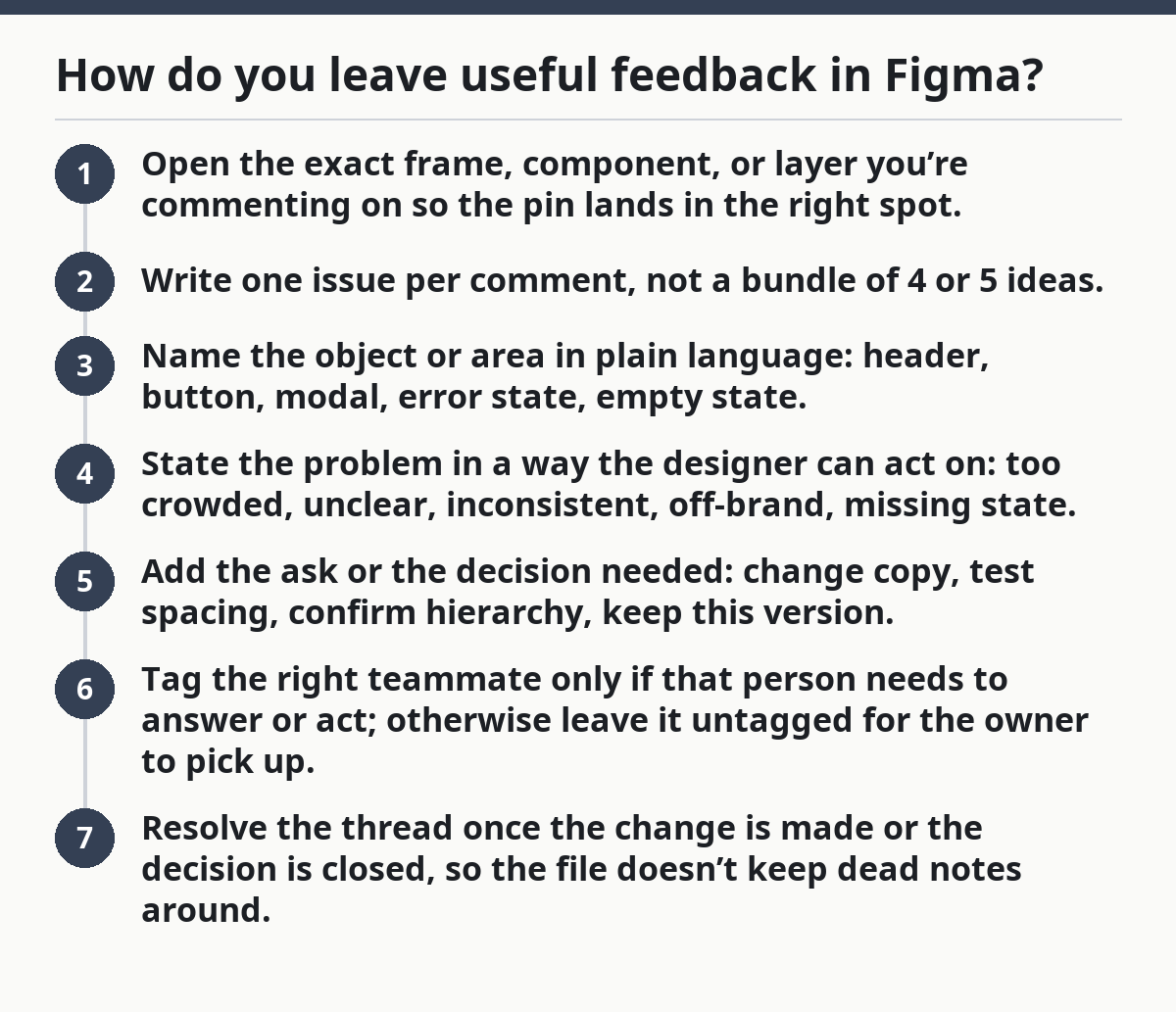
Here’s the core move, step by step:
- Open the exact frame, component, or layer you’re commenting on so the pin lands in the right spot.
- Write one issue per comment, not a bundle of 4 or 5 ideas.
- Name the object or area in plain language: header, button, modal, error state, empty state.
- State the problem in a way the designer can act on: too crowded, unclear, inconsistent, off-brand, missing state.
- Add the ask or the decision needed: change copy, test spacing, confirm hierarchy, keep this version.
- Tag the right teammate only if that person needs to answer or act; otherwise leave it untagged for the owner to pick up.
- Resolve the thread once the change is made or the decision is closed, so the file doesn’t keep dead notes around.
A strong comment is short but not vague. “Button feels too small” is weaker than “Primary CTA feels small on mobile; can you match the 44 px target used elsewhere?” The second version gives shape, context, and a practical next step.
Use one of these patterns:
- Problem + ask: “The header wraps awkwardly on 375 px. Can we shorten the title or reduce the padding?”
- Question + context: “Is this field required? The red asterisk makes it read that way.”
- Decision check: “Should this stay disabled until upload finishes, or do we want a loading state?”
Do not overload the thread with three separate issues. If the title, spacing, and icon are all wrong, split them into separate notes. One thread, one decision.
That discipline matters in design review because it keeps teammates from answering the wrong thing. It also gives stakeholders a clearer sense of what still needs a call. A note that can be acted on in one pass is worth far more than a paragraph that sounds thoughtful but sends the team back to square one.
Mentioning teammates and stakeholders without creating noise

Mentioning the right person in Figma makes feedback land faster, but tagging everyone turns the file into a notifier storm. Tag only the person who can answer, change, or confirm the issue.
Picture this: you’ve got a product manager, a designer, and a developer on the same file, and every comment pings all three people for a change that only one of them owns. That’s how a review becomes annoying instead of useful. Mention with intent.
Use mentions for these cases:
- A designer needs to make the edit
- A product manager needs to confirm a requirement
- A stakeholder needs to approve a direction
- A developer needs to check whether the UI can ship as shown
Skip mentions when the note is clearly for later sorting or when the owner is already in the thread. A comment that says “@Sam can you confirm?” is fine if Sam owns the decision. A thread that tags five people for a copy tweak is not.
What works better is a simple pattern:
- Leave the comment on the relevant layer
- Mention one owner
- Add the exact question
- Wait for the answer before adding more notes
Here’s the catch: mentions are not a substitute for accountability. If a thread is sitting for 2 days with no reply, don’t just tag more names. Clarify the ask. “Need a yes/no on whether this label must stay legal-safe” works better than “any thoughts?” because it narrows the response.
A stakeholder comment should also stay at the right altitude. Business goals, risk, and user impact belong in the note. Pixel-level micro-management usually does not. If you’re not the owner of the visual detail, leave the implementation path to the designer and focus on the outcome you need.
A good rule: if the answer can come from one person, tag one person. If it needs a wider call, write the issue cleanly and let the owner pull in the rest. That keeps the review readable and stops the file from turning into group chat with screenshots.
How to group feedback so it stays readable
Group related feedback by screen, goal, or decision so the file reads like a map instead of a pile of scraps. In practice, that means keeping one thread for one topic and using separate comments for separate choices.
Because the thread structure matters, grouping also helps the reviewer see patterns instead of isolated notes. When people can scan the file faster, they can act faster too. For workflow context, see commenting and collaboration in design systems.
Picture this: you’re reviewing a checkout screen and someone leaves six comments about the price block, three about the CTA, and two about the helper text, all mixed across the same area. The designer now has to hunt for patterns. Grouping comments saves time.
A clean grouping method looks like this:
- By frame: keep notes on the screen they affect.
- By component: gather notes about one reusable element, like a nav bar or card.
- By decision: keep together all comments that affect the same call, like copy tone or button hierarchy.
- By blocker: group the issues that must be fixed before approval.
If the same problem appears in 3 places, call that out without bloating the thread. “This label truncates in the desktop and tablet versions too” is better than repeating the same complaint three times. One note can point to the pattern.
Don’t mix feedback types in one thread either. A copy edit, a visual bug, and a product question are not the same thing. If you keep them separate, each owner can scan the file faster and respond without sorting your thinking for you.
A useful trick is to write comments in a sequence that mirrors the work. Start with the blocker, then the medium-priority notes, then the polish items. That helps a review session stay focused for the first 10 minutes, when the team still has energy and attention.
A related benefit is that grouping keeps nuance intact. It gives the repeated issue a clear home, so a designer can fix the pattern once instead of patching each note one by one.
If your team works across Figma and other collaboration tools, this page pairs well with the broader guidance in the hub on design handoff and collaboration for product teams.
How to resolve comment threads without losing decisions
Resolving comment threads in Figma means closing the loop, not erasing the past. Mark a thread resolved only after the issue is fixed, rejected with a reason, or parked with a clear next step.
After the comments are grouped and answered, the next step is to clean up the file so active work stays visible. That makes the review easier to trust the next time someone opens it.
Picture this: a file with 22 old comments still open looks active, but most of that activity is dead weight. Nobody can tell what still matters, and new feedback gets buried. Resolution is part of the workflow.
Use this closeout order:
- Read the thread from the top and confirm the ask.
- Check whether the issue was fixed in the file or answered in the thread.
- If the change is done, resolve it.
- If the team chose not to change it, leave a short reason in the thread first.
- If the issue is bigger than the current review, assign a next step and do not let it sit unresolved without context.
The important part is the reason. “Won’t change” helps nobody. “Keeping this label because it matches the legal pattern used elsewhere” tells the next reviewer why the decision stands.
Resolved threads still matter as a record, but they should not crowd the active review. A clean file makes the next pass easier, especially when a design has been through more than 1 review round. If the same concern comes back later, the old thread gives context fast.
On the flip side, do not resolve a thread just because the discussion got annoying. If the note is still open in the work, leave it open. A fake close is worse than a messy file because it hides unfinished work.
A tidy resolution habit also helps teams move faster between design review and the next edit cycle. The designer sees what’s left. The stakeholder sees what got answered. The product manager sees what still needs a call. No one has to reconstruct the conversation from scratch.
Common Figma comment mistakes that slow teams down
The biggest Figma comment mistakes are vague wording, too many tags, and threads that mix decisions with debates. Each one costs time because someone else has to decode what you meant before they can act.
After a thread gets open for too long, it starts to blur the real issue, so the file should make the problem clear right away. That is why precise notes matter more than clever wording.
Picture this: you open a file and see “thoughts?” on a blank frame, “fix this” on a heading, and five people tagged on a small spacing issue. That is not feedback; it’s friction. Bad comments create extra work.
Here are the mistakes that cause the most trouble:
- Vague language: “Looks off” gives no target.
- Stacking issues: one thread contains 4 unrelated problems.
- Wrong person tagged: the note goes to someone who cannot answer it.
- No decision language: the comment asks for action but never says what outcome is needed.
- Never resolving: old threads stay open and bury new notes.
The cost is simple. Vague notes slow edits. Mixed threads make the owner split attention. Extra tags create noise. Unresolved threads make the file harder to trust.
The fix is equally simple:
- Name the screen or element
- State one problem
- Ask for one change or one answer
- Tag one owner
- Resolve the thread when done
If you need to leave a broader note, break it into separate comments by topic. A 2-line comment is often better than a 5-line paragraph because the designer can scan it in seconds instead of parsing the whole thing.
One more trap: using comments to replace actual alignment work. If the issue is the same on every screen, raise it once and reference the pattern, instead of dropping a note on every frame. A single precise comment is enough when it names the recurring issue and the affected area.
A simple comment workflow for the next design review
A clean Figma comment workflow starts with the file owner, the reviewer, and the next action each thread needs. Put those three things in place and the review becomes easier to read, faster to clear, and less annoying to join.
Once the workflow is set, the team can focus on the next move instead of guessing what the thread means. That is the difference between scattered feedback and a usable review trail.
Picture this: you’re opening a review file 30 minutes before a meeting and trying to tell which notes are new, which are stale, and which ones already got answered. That confusion is the sign the workflow needs structure, not more opinions. The file should show the next move.
Use this sequence for every review:
- Review the frame first, not the comment list.
- Leave comments only on issues that need an action, answer, or decision.
- Keep each note tied to one element or one decision.
- Mention only the person who can move the thread forward.
- Group similar notes near each other, but do not merge unrelated issues.
- Resolve threads as soon as the change or decision is complete.
- Keep a short thread alive only when a real decision is still open.
If a team follows that pattern, stakeholders can scan the file without needing a live explanation for every note. Designers can work from the comments instead of chasing vague requests. Teammates can reply in the thread and move on.
The real value of Figma comments is not that they collect feedback. It’s that they turn feedback into a path from question to decision. That only happens when the notes are specific, the tags are selective, and the thread ends when the work ends.
How do you leave useful feedback in Figma?
Leave feedback on the exact frame or layer, name the issue in plain language, and ask for one change or one answer. A comment like “This CTA feels off” is weaker than “This CTA feels off on mobile; can we increase the tap target to 44 px?”
Drafted with AI; not yet reviewed by a person.