
Last updated: November 19, 2026
Quick Answer: Figma for product teams is a strong default when three or more people need to review the same UI in one live file. Figma for product teams solves the same problem in most companies: design, product, and engineering need one place to review screens, flows, and handoff details without chasing screenshots. Use Figma when your team needs live collaboration on product work, not just static mockups. In Figma for Product Teams: The Complete Guide, the sections below settle when it helps, where it breaks, and how a product team should actually run it.
Key takeaways
- Figma works best as the shared workspace for product design, review, and developer handoff.
- It is strongest when PMs, designers, and engineers need the same file open at the same time.
- It is weaker when a team needs heavy offline work, complex animation, or deep product analytics.
- The right setup is less about features and more about file structure, naming, permissions, and review habits.
- If the team has no design owner, Figma can turn into a crowded folder fast.
I write about product design systems and cross-functional workflow, so I look at Figma for Product Teams: The Complete Guide less like a drawing app and more like a team operating system.
What Figma actually does for a product team

Figma gives a product team one shared place to design screens, map flows, annotate decisions, and hand work to engineering. For product teams, that usually matters more than the tool’s drawing features. The real value is one live file, one source of truth, and fewer broken handoffs.
Picture this: you’re in a product review, a PM wants to change the onboarding step, design is updating the screen, and engineering needs spacing details before the next sprint. Figma keeps those people in the same canvas instead of in three different tools. That matters most on teams that ship weekly or use a tight sprint cycle.
Here is the catch: Figma is not a product management platform, and it is not a task tracker. It supports product work, but it does not replace Jira, Linear, Asana, or Notion. It shines when the team already has a clear process and needs a shared visual layer.
- Figma is strongest for:
- Wireframes
- UI design
- Design systems
- Stakeholder review
- Developer handoff
- It is weaker for:
- Roadmaps
- Backlogs
- Deep analytics
- Offline editing
- Rich motion work
That line between “design” and “product” gets thinner in Figma. A PM can leave comments on a screen, a designer can update a component, and an engineer can inspect values in the same tab. That kind of shared context cuts down on “what did you mean here?” meetings.
Why product teams pick Figma instead of older design tools
Figma wins because it is built for collaboration first, not file transfer. Older desktop tools often made one person the file owner and everyone else a reviewer. Figma flips that model. Multiple people can work in the browser, leave comments, and see changes live.
Picture this: you’re trying to get three approvals before a release, but every round of feedback arrives in email screenshots or PDF markup. Figma compresses that loop. The team can comment on the exact frame, check version history, and keep the feedback attached to the work itself.
That matters because product work moves fast, and the cost of confusion is high. A mislabeled button or misplaced field can become a sprint delay if the review chain lives outside the design file.
Where Figma is better
- Real-time editing helps distributed teams see changes quickly.
- Comments on canvas keep feedback close to the screen in question.
- Version history helps a team roll back when a direction goes wrong.
- Browser access lowers the friction for PMs and engineers who do not live in design tools all day.
- Design systems stay usable because components can be reused in many files.
Where Figma is worse
- Large files can get messy if the team has no naming rule or page structure.
- Browser dependence can annoy teams with weak connections or strict security tools.
- Advanced motion or illustration work usually belongs in other tools.
- Too many commenters can bury the real decision under side notes.
The truth is, Figma wins most decisively for teams that care about fast review cycles. It is less compelling for teams that only need a final mockup once a month. If the file opens twice a quarter, the collaboration features barely matter.
How should a product team set up Figma?

A product team should set up Figma around decisions, not around file dumping. The cleanest setup is usually a small number of predictable files with a naming system, clear ownership, and a home for components. Without that, the tool gets noisy fast.
Picture this: you’re joining a team and the Figma sidebar has 200 files with names like “New Homepage v7 final final.” That is not a tool problem. That is a process problem. Figma exposes team habits, good and bad, because everyone can see the mess.
A better setup usually has these pieces:
- One design system file for shared components
- One or more project files for active product work
- A clear page order such as research, flows, wireframes, UI, and handoff
- Named owners for major files
- A review rule so comments do not sit forever
A strong product team also keeps components and product explorations separate. If every experiment is built directly on the same system file, the shared library becomes hard to trust. That creates drag for engineers and designers alike.
Useful setup rules
- Keep component libraries in one place.
- Put live work in separate files by product area or initiative.
- Use page names that match the stage of work.
- Archive old work instead of leaving it in active folders.
- Give engineers a clean path to inspect the final UI.
Common setup mistakes
- Mixing experiments and approved components in one file
- Naming files by person instead of by project
- Using comments as the only record of decisions
- Letting everyone edit the system file at once
- Treating folders like storage instead of workflow
This is where many generic guides stop too early. They explain the features and skip the operating model. Figma only stays useful if the team decides where drafts end and approved UI begins. That boundary is the difference between a working system and digital clutter.
Figma for product teams: who should use it and who should not
Figma is the right fit for product teams that need shared design work, fast feedback, and a clean handoff to engineering. It is the wrong fit for teams that want one tool to do product management, analytics, and design all at once. That promise sounds nice; it usually ends in mess.
Picture this: you’re a PM who needs to align design, engineering, and leadership on the same screen before the next sprint starts. Figma helps because the conversation happens on the artifact itself. Now picture a team with no designer, no design system, and no review habits. Figma will not fix that.
Figma is a strong fit for:
- SaaS product teams
- Startup teams shipping weekly
- Distributed product groups
- Teams with design systems
- PMs who need visual context
- Engineers who want inspectable specs
Figma is not a strong fit for:
- Teams with no design owner
- Groups that mostly need docs, not UI
- Motion-heavy brands
- Offline-first workflows
- Teams that already struggle with file discipline
The best users are teams that already know what a design decision looks like and need a shared place to make and review it. Teams that want Figma to replace process usually end up disappointed. A tool cannot create alignment on its own.
What product teams gain
- Faster review cycles
- Better alignment between design and build
- Fewer handoff gaps
- Easier onboarding for new PMs and engineers
- More visible product decisions
What product teams lose
- Simplicity if file governance is weak
- Speed if files become bloated
- Clarity if too many people edit the same area
- Focus if comments are not resolved
The right people can enter the file without a long training session. That makes Figma unusually good for cross-functional teams. A PM can open a frame and understand the flow without learning a full design stack.
What does Figma change in the design-to-dev handoff?
Figma changes handoff by making the design file the reference point for implementation, not a static artifact exported at the end. Engineers can inspect spacing, color, font values, and component details directly in the file. That reduces the chance of mismatched screens.
Picture this: you’re in a sprint review and the engineer asks whether the card spacing is 12 or 16 pixels. In a Figma-first workflow, that answer is usually one click away. Without that shared file, the answer lives in a meeting note, a screenshot, or someone’s memory.
That said, Figma does not remove the need for a good handoff process. A design file can still be unclear if the team does not label states, edge cases, and responsive behavior. The tool gives you the space; it does not do the thinking.
Handoff details product teams should include
- Empty states
- Loading states
- Error states
- Hover and focus states
- Responsive behavior
- Content length limits
- Acceptance notes for tricky interactions
Where handoff still fails
- The file shows only the happy path
- Engineers do not trust the latest file version
- Designers rely on comments instead of labeled states
- Product changes land after handoff without reopening the file
Here’s the catch: the more complex the product, the more important the handoff discipline becomes. A simple landing page can survive a loose process. A checkout flow, admin tool, or multi-step onboarding cannot.
The honest limits of Figma for product work
Figma is not a full product operating system, and pretending otherwise causes bad decisions. Its biggest limits show up when a team needs richer project tracking, complex animation, deep research storage, or offline reliability. That is where teams start asking a design tool to do too much.
Picture this: you’re trying to run roadmap planning, sprint tracking, research summaries, and UI design in one space. Figma can hold some of that context, but it is not the right home for all of it. The file becomes crowded, and people stop knowing where the truth lives.
The main limits
- No native product roadmap system in the sense a PM tool provides
- No full research repository for interviews, transcripts, and analysis
- Limited offline use compared with desktop-first tools
- Can become expensive at scale depending on team size and plan needs
- Permission sprawl can make governance harder on large teams
Where teams feel the pain
- Large design systems with many contributors
- Multi-product orgs with shared UI libraries
- Security-conscious companies that want tighter control
- Teams with many non-design stakeholders in the file
The honest answer is that Figma works best as the visual truth layer, not the whole truth. Product planning still belongs elsewhere. Research still needs a home. Release coordination still needs a tracker. When those jobs stay separate, Figma stays useful.
The Honest Side-by-Side
Figma wins for live product collaboration, while older file-based workflows still win for isolated design work and strict offline control. That is the real divide. The question is not which tool is “better”; it is which workflow your team actually runs every week.
Picture this: you’re deciding whether to standardize one design workspace for a 12-person product group. You need more than feature lists. You need to know where the friction lands, who feels it, and what the team gives up to get the collaboration benefit.
| Criteria | Figma | Older file-based workflow | Winner for [condition] |
|---|---|---|---|
| Real-time coediting | Live in browser with shared editing | Usually one editor at a time | Figma for distributed teams |
| Commenting on the design itself | Comments stay on frames and objects | Feedback often happens outside the file | Figma for review-heavy teams |
| Developer handoff | Inspectable specs and components | Handoff often uses exports and notes | Figma for sprint handoff |
| Offline work | More limited than desktop-first tools | Often stronger offline behavior | Older workflow for travel or low-connection work |
| File governance | Strong if rules are enforced | Simpler in small solo setups | Figma for multi-person teams |
| Design systems | Central component libraries | More brittle across file copies | Figma for reusable UI |
| Non-design collaboration | PMs and engineers can join easily | Review is usually less interactive | Figma for cross-functional teams |
| Motion/illustration depth | Not the main strength | Some desktop tools do this better | Older workflow for visual specialists |
| Version visibility | Version history is easy to review | Can depend on manual exports | Figma for auditability |
| Process control | Requires discipline to stay clean | Simpler when only one person owns the file | Older workflow for tiny teams |
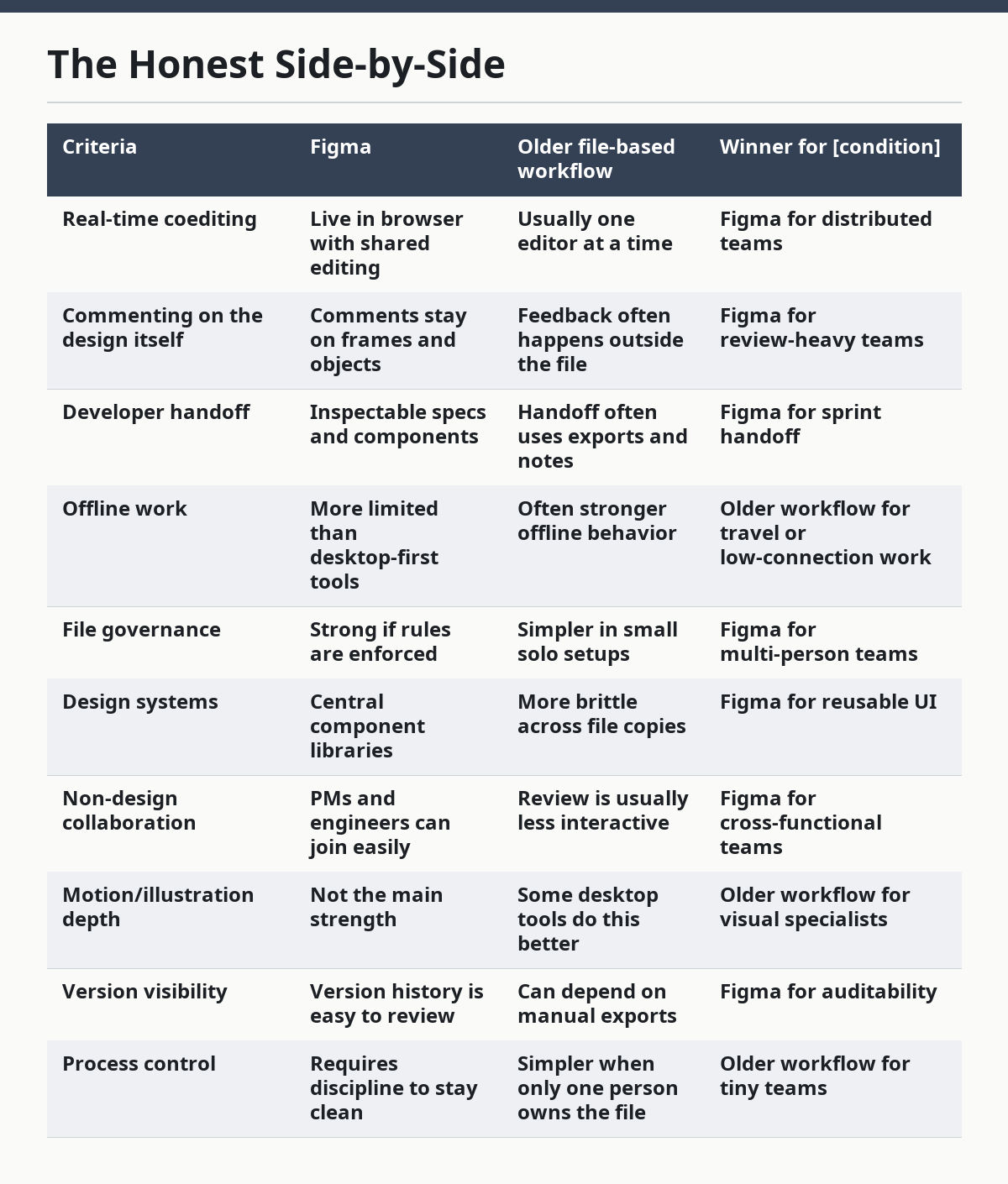
The side-by-side makes one thing plain: Figma wins when the problem is shared product work. The older model wins when the problem is personal production, not team collaboration.
Figma’s strengths in plain terms
- One file stays live for the team
- Review happens where the work lives
- Engineers can inspect instead of guess
- PMs can join without special setup
Figma’s weaknesses in plain terms
- It can get cluttered fast
- It needs rules to stay clean
- It is not the place for every kind of work
- It can become a bad system if ownership is fuzzy
The truth is, many teams do not lose because Figma is weak. They lose because they use it without standards. A messy Figma setup feels like tool failure, but it is usually process failure wearing a software badge.
The Verdict: Which one to choose and why
Choose Figma if your product team needs live collaboration, visual review, and clean developer handoff in one shared workspace. Choose a simpler file-based workflow if only one person owns the design work or if offline production matters more than real-time teamwork. Neither if you want one tool to replace your roadmap, research, and task tracker.
Picture this: you’re about to standardize a product team around one design workflow for the next year. The right answer depends on how many people touch the file, how often the work changes, and whether the team needs comments tied to screens or just a finished artifact.
Choose Figma if:
- Three or more people need to review the same product UI
- Design and engineering work in the same sprint cadence
- You need reusable components and visible version history
- PMs want to comment directly on flows and screens
- You want the browser to be the team’s shared workspace
Choose something else if:
- One designer owns nearly all production
- The team mostly ships static assets
- Offline editing is a constant need
- You want a tool mainly for export, not collaboration
- There is no one willing to maintain file structure
Neither if:
- The team has no product process
- No one owns design quality
- Your main pain is roadmapping, not screen design
- People expect the tool to create alignment by itself
That is the clean call. Figma is not the best tool for every visual task, but it is the default for product teams that work in the open and move together.
When should a product team reconsider Figma entirely?
A product team should reconsider Figma when the work stops being screen-first or when the team grows too large to keep files disciplined. That usually shows up around shared libraries, permissions, and unclear ownership. The tool still works; the operating model does not.
Picture this: you’re six months into adoption and the files are full, comments are stale, and nobody knows which frame is current. That is the moment to step back. Sometimes the problem is not adoption, but category fit.
Reconsider Figma if:
- Your product work is mostly data tables, docs, or workflows with little UI change
- Your team needs strict offline or locked-down desktop use
- You have more contributors than you have file owners
- Research, roadmap, and design are all being forced into the same space
- The design system has grown too large for your current governance
Better fit in those cases
- A PM system for roadmap and delivery
- A docs tool for research notes and decisions
- A stricter design governance model
- A smaller number of active file owners
This is not a permanent choice. Many teams start with Figma and later split responsibilities as they grow. The mistake is not changing tools. The mistake is pretending one setup fits every stage.
FAQ
Is Figma only for designers?
No, it is not only for designers. Product managers, engineers, researchers, and leaders can all use it to review flows, leave comments, and understand what is being built. The tool works best when non-design stakeholders participate without trying to turn it into a document dump.
Can a product team use Figma without a design system?
Yes, but the team will feel the pain sooner. Without a design system, the file can still support wireframes and review, yet repeated UI work becomes harder to keep consistent. A small team can start there, but most product groups outgrow that setup once screens multiply.
Does Figma replace Jira or Linear?
No, it does not replace them. Figma handles the visual side of product work, while Jira or Linear handles tickets, priority, and delivery flow. A strong team usually keeps both: one tool for the work item, one tool for the screen.
Is Figma good for engineering handoff?
Yes, if the team uses it well. Engineers can inspect spacing, colors, and component details directly in the file, which helps cut down on guesswork. The catch is that the designer still has to label states, edge cases, and behavior clearly.
What is the biggest mistake teams make with Figma?
The biggest mistake is treating Figma like a folder instead of a working system. Files pile up, names drift, and comments replace decisions. A small set of rules for ownership, pages, and archiving keeps the tool useful far longer.
Drafted with AI; not yet reviewed by a person.