Last updated: November 19, 2026
Quick Answer: use 4 states—Draft, Review, Approved, and Archived—to keep Figma files clear, with one owner per file and one archive rule. In How to Build a Figma Status System for Draft, Review, Approved, and Archived Work, that means each file should show its state in under 5 seconds. The fix is a simple status system with named states, ownership rules, and a hard archiving rule. The steps below show how to set it up without turning your Figma space into a mess.
Key Takeaways
- A Figma status system works best when each file has one obvious state and one owner.
- Use Draft, Review, Approved, and Archived as workflow states, not as vague comments in a file name.
- Keep approved work easy to find, but separate from active drafts so people do not edit the wrong file.
- Archive files on a schedule and move ownership with the status change.
- The system fails when teams mix status with versioning, intake, or decision notes.
What a Figma status system should do
A Figma status system should tell any teammate, in under 5 seconds, whether a file is still being shaped, waiting on feedback, safe to ship, or done for now. That is the whole job. It is not a project plan, and it is not a version history.
For How to Build a Figma Status System for Draft, Review, Approved, and Archived Work, the first job is clarity, not decoration. Picture this: you open Figma on a Monday and see 40 files with names like “Home page final final,” “Checkout v3,” and “WIP review maybe.” You need a status system that makes the next move obvious. The cleanest setup uses 4 states and one rule per state.
- Draft = still being designed; edits are expected.
- Review = ready for comments; changes should slow down.
- Approved = signed off; changes need a new draft or a new revision.
- Archived = no longer active; keep it for reference, not editing.
That structure works because it maps to work, not to ego. “Approved” is not a compliment. It is a control point.
The truth is, most teams try to express all of this in file names alone. That breaks fast. A file name can help, but a status label gives you a shared signal inside the tool. If you want the broader Figma operating model around it, this page fits under the larger Figma for Product Teams — The Complete Guide hub without replacing the pieces that belong elsewhere.
How do you set up the four status states in Figma?
You set up the four status states in Figma by assigning one visible label, one owner, and one place for each state to live. That gives the system shape before people start using it.
Because the setup works only when people can read it quickly, keep the same 4 labels across every team space, project, and file title. Picture this: you’re the design lead and someone asks, “Is this ready?” You should not have to open three files and scan comments. The answer should come from the file’s state and location. Use the same 4 labels everywhere, then make the setup easy enough that people follow it on a busy day.
Use this as the core procedure:
- Create the status labels. Use Draft, Review, Approved, and Archived across every team space, project, and file title. Keep the wording identical so nobody has to guess whether “In progress” means Draft or Review.
- Pick one owner for each file. Assign a designer or design lead as the person who moves the file between states. If ownership is shared, the status will drift and nobody will feel responsible for the handoff.
- Decide where each state lives. Keep Draft and Review in the active project, Approved in a stable library or approved area, and Archived in a separate archive project or archive section. That split reduces accidental edits.
- Set the move rule. Draft moves to Review when the file is ready for comments, Review moves to Approved when the approver signs off, and Approved moves to Archived when the work is replaced, shipped, or no longer referenced.
- Write one sentence per state. Post the rule in a team doc or project note: Draft means editable, Review means comments only, Approved means no edits without a new draft, Archived means reference only. Short text beats a long policy nobody reads.
- Review the system every 30 days. Check for files stuck in Review or Approved with active comments. That tells you where the process is breaking.
A status system works best when the labels are boring. Boring is good. It makes the status easy to scan in a list, a project view, or a team handoff.
What belongs in Draft, Review, Approved, and Archived?
Each status should mean something different enough that people change behavior when they see it. If two statuses allow the same work, the system is already slipping.
For How to Build a Figma Status System for Draft, Review, Approved, and Archived Work, the states have to change behavior, not just wording. Picture this: you are looking at a design file with 12 pages and a comment thread from three days ago. You need to know if you can still push pixels, or if you should stop and wait. The answer depends on what the state allows, not just what the file is called.
Here is a clean way to define the states:
- Draft: active editing, open questions, messy frames, and placeholder content are allowed.
- Review: the file is ready for comments, but the owner still makes changes.
- Approved: the design has sign-off and should match the shipped or agreed version.
- Archived: the file is no longer a live source of truth; it exists for history, audits, or reference.
Each state can carry a different access habit. Draft gets fast edits. Review gets comments and limited changes. Approved gets freeze-like treatment, and teams should consult a product, design, or legal owner if the workflow needs a formal lock; Figma’s permissions and file guidance are the place to verify what the tool can and cannot enforce. Archived gets read-only behavior in practice, even if the tool does not force it.
Common mistake: teams let “Approved” mean “done forever.” That breaks as soon as a product changes. A feature can be approved for one release and still need a new draft later. Approved is a checkpoint, not the end of design work.
Common mistake: teams let “Archived” mean “deleted.” That creates panic when somebody needs an old layout, a screen label, or a reference for a new feature. Archive should preserve useful work, not hide it.
How do you mark approved work so nobody edits the wrong file?
You mark approved work by making it visually distinct, placing it in a stable location, and separating it from active drafts in a way that takes less than 10 seconds to understand. A status label alone is not enough if approved files sit beside work in progress.
Because approved files still need a clear home, the label has to work with location. Picture this: a developer opens Figma looking for the final button spec and lands in a file that still has yellow sticky comments everywhere. That is how mistakes start. Approved work needs a clear home and a clear signal.
Use these signals together:
- Put Approved in the file status field or file title.
- Move the file to an approved project or approved section.
- Add a short note at the top of the file: “Approved for release on [project name]” or similar.
- Lock the habit, not just the file. Tell the team that approved work is reference material unless a new draft is opened.
If your team uses components, frames, or pages in the same file, add one more rule: approved frames stay in a labeled page or section, while active redesign work stays elsewhere. That keeps the approved surface from getting mixed into ongoing edits.
Here’s the catch: if you do not separate approved work from drafts, people will keep “just fixing one thing.” Then the approved file stops being reliable. The cost is not only confusion. It is rework, because no one trusts the state anymore.
A simple naming pattern can help here too, as long as it supports the status rather than replacing it. Use the file name to identify the product or feature, then use the status to identify the state. Do not pack the whole policy into the title.
Where should archived files go?
Archived files should go in a separate archive project, archive section, or archive folder-like space that active teams do not browse every day. That keeps the archive useful without letting it crowd live work.
Once a file is archived, the archived file should not stay in the same active flow as approved files. Picture this: you are cleaning up a design space after launch. You have 18 files that are finished, outdated, or replaced by a newer direction. If you leave them in the main project, they become noise. If you delete them, they vanish. Archive is the middle path.
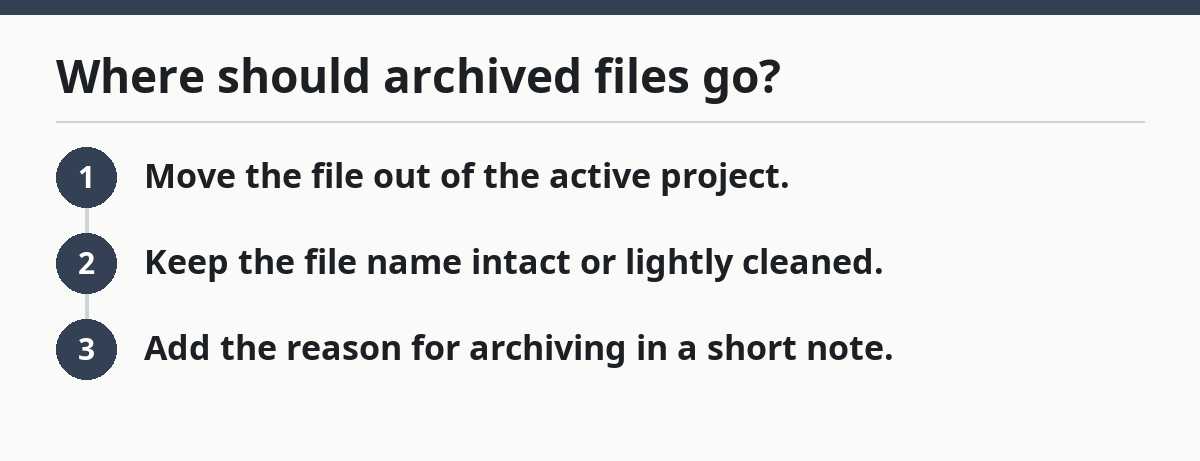
A good archive rule has three parts:
- Move the file out of the active project.
- Keep the file name intact or lightly cleaned.
- Add the reason for archiving in a short note.
That note matters. “Archived after checkout redesign shipped in March” is better than a silent move. It tells future teammates why the file is there and whether it still matters.
Do not keep archived files mixed with approved files unless the project is tiny and the team is tiny too. Even then, it gets messy fast. Approved means current reference. Archived means historical reference. Those are not the same job.
The archive setup should also keep ownership clear. Once a file is archived, the original owner should not usually be treated as the active decision-maker; if the team needs the file again, a design lead or project owner should decide whether to reopen it as a new draft or copy what is needed into a fresh working file, ideally with a source check from the team.
What work ownership rules keep the system honest?
Clear ownership keeps the status system honest because someone has to move the file, answer comments, and decide when a state changes. Without ownership, the labels look organized while the process falls apart.
Because ownership is what makes the state real, the next question is who moves the file at each step. Picture this: three people think someone else will move a file from Review to Approved. Two days later, the file is still waiting, and everyone assumes it is done. That gap is not a tooling problem. It is an ownership problem.
Set these rules:
- Draft owner: the designer shaping the file.
- Review owner: the same designer or a design lead who collects feedback.
- Approval owner: the person who gives sign-off, often a design manager, PM, or product owner.
- Archive owner: usually the original owner or a team lead who closes the loop.
If your team has only one designer, the same person may hold all four roles. That is fine. The rule still helps because it keeps the move visible. In a larger team, the roles separate naturally.
Use a 24-hour or 48-hour review expectation if your team needs a timing rule. Not a deadline for creativity—just a handoff window so Review does not become a parking lot. If your team cannot meet that rhythm, the problem is usually overloaded approvers, unclear sign-off rights, or too many files entering Review at once.
Avoid one common trap: do not let the status system become a hidden calendar. A file should not stay in Review just because nobody wants to touch it on Friday. Move it, or note why it is blocked.
What breaks a Figma status system?
A Figma status system breaks when people use status labels for version history, task tracking, or decision notes. Those jobs are related, but they are not the same thing.
Because the labels are meant to stay narrow, adding extra meanings makes the system fail. Picture this: a team uses Draft, Review, Approved, and Archived, but also adds “Needs PM,” “Waiting on copy,” and “Maybe v2” as extra states. The status field turns into a chat log. That is a bad trade.
The biggest failure points are easy to name:
- Too many labels.
- No single owner.
- Approved files still edited in place.
- Archived files left in the same active space.
- No rule for reopening approved work.
The fix is not more labels. It is fewer labels with tighter meaning. A 4-state system is enough for most product teams. If you need more detail, put it in comments, file notes, or your project tracker—not in the status system itself.
The truth is, teams often blame Figma for a process problem. Figma is just showing you that the workflow is undefined. Once the states are clear, the tool stops being the problem and starts being the mirror. For more guidance on permissions and file management, Figma’s Help Center is a useful reference, and Atlassian’s workflow guidance is also helpful for defining states before labels sprawl.
FAQ
What status labels work best in Figma?
The best status labels are Draft, Review, Approved, and Archived for most teams. Those four words are clear, short, and easy to scan in a project list or file title. If your team uses different terms, keep the meaning stable and do not add extra labels unless they change behavior in a real way.
How do teams mark approved work in Figma?
Teams mark approved work by combining a clear label, a stable location, and a short note that says the file is approved. The file should also sit apart from active drafts so nobody edits it by accident. Approved should signal “reference this,” not “keep changing this.”
Should archived files stay in the same project?
Archived files should usually move out of the active project. Keeping them in the same place makes the project harder to scan and raises the chance that someone edits an old file by mistake. A separate archive project or archive section is cleaner for most teams.
Drafted with AI; not yet reviewed by a person.