Last updated: November 19, 2026
Key Takeaways
- Move finished work to one named archive, keep older versions easy to find, and shrink the active workspace.
- Decide the retirement rule first so nobody archives work by guesswork.
- Set up a Figma archive process by choosing one archive home, defining what moves there, and assigning one owner.
- Keep the last meaningful version, the shipped state, and the file that shows the decision path.
Finished Figma work gets messy fast if nobody decides what “done” means. How to Set Up a Figma Archive Process for Finished Work and Old Versions starts with a simple rule: move retired files out of active work, keep versions easy to find, and leave a clean trail for old decisions. The steps below settle what to archive, what to keep, and how to make the archive usable later.
What a Figma archive process should do
A Figma archive process should move finished work into a named place, keep older versions reachable, and make the active workspace smaller. If a file is truly retired, the process should tell the team where it lives, who owns it, and what still matters from it.
For example, if you open Figma on a Monday and see 40 files that all look active, the archive process should tell you which ones are dead ends. A rule that works in under 5 minutes is usually easier to follow than a complex folder tree. A 5-minute rule is also easier to repeat across a team.
Start with three outcomes:
- active files stay easy to scan
- finished work is still searchable
- old versions don’t get mixed with current work
A weak archive process usually fails in one of two ways. It hides too much, so nobody can find the old mockup. Or it keeps everything in the main project, so the file list becomes noise. Figma’s own help docs on version history and file organization are the right place to check the mechanics before you standardize the process. See Figma Help Center.
Set the retirement rule before you touch any files
Set the retirement rule first so nobody archives work by guesswork. A file should move when it has shipped, been replaced, or stopped changing for a clear reason. If your team handles regulated, legal, or approval-heavy work, consult a professional before setting retention rules.
For a process reference, use Figma’s version history and file management guidance, and pair it with your team’s own policy. See Figma Help Center and NIST records management guidance.
For example, if you are reviewing a project with three files called “final,” “final-final,” and “final v7,” a rule tells you which one is live. Without a rule, everyone thinks they are all active.
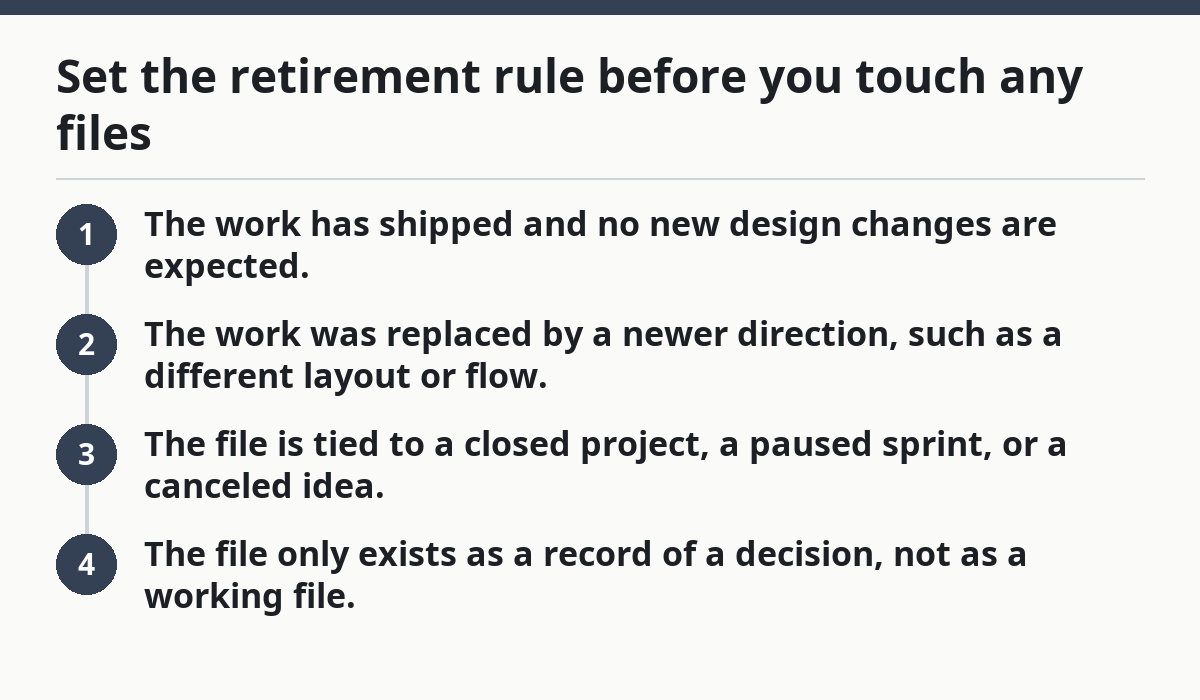
Use a rule that covers these cases:
- The work has shipped and no new design changes are expected.
- The work was replaced by a newer direction, such as a different layout or flow.
- The file is tied to a closed project, a paused sprint, or a canceled idea.
- The file only exists as a record of a decision, not as a working file.
A good rule also names what does not get archived yet:
- files still in review with PM or engineering
- files that need one last handoff check
- files that are part of an active design sprint
- files that still receive edits every week
If you archive too early, people make duplicate files to keep working. That creates split history and extra cleanup later. If you archive too late, the active project turns into a junk drawer. The fix is a clear cutoff, not a bigger folder tree.
How do you set up a Figma archive process?
You set up a Figma archive process by choosing one archive home, defining what moves there, and assigning one person to do the move. That keeps the process predictable instead of ad hoc.
For example, if you are tidying up after a release and nobody remembers which file is the real one, a single archive location and a short checklist save time. Figma’s file and project structure helps when you keep the setup simple. See Figma Help Center.
Use this core procedure:
- Create one archive project or folder. Name it plainly, like “Archive” or “Retired Work,” so nobody has to decode the label.
- Move the finished file into that location. Keep the file name intact if possible, so search still works.
- Rename only if needed for clarity. Add a date, release name, or status tag if the original name is vague.
- Leave a short note in the file description or project description. Record why it was archived and what replaced it.
- Mark the active source elsewhere. The live file should point people to the current version, not to the archive.
- Check links and shared references. Make sure people who need it can still find the file, even if it is no longer active.
A few practical settings make this easier:
- use one archive project per team or product area if your workspace is large
- keep archived files in the same Figma workspace if search matters
- use a simple naming pattern that includes a status cue, such as “Archived” or “Retired”
Do not scatter old work across six projects. That turns archive into a scavenger hunt.
What to keep in the archive and what to leave out
Keep the last meaningful version, the shipped state, and the file that shows the decision path. Leave out draft clutter, duplicate exports, and random copies that never left the sketch stage.
For example, if you have one file with the final UI, one with rejected options, and three copies from a workshop, the archive should preserve the file that answers future questions. The archive is not there to keep every draft. It is there to keep the useful record.
Keep these:
- the final shipped file
- the last approved version before a release
- a file that documents a major direction change
- a handoff file if engineering still needs to reference it
- a file tied to a contract, audit, or brand approval
Leave these out if they do not add value:
- duplicate backups with no differences
- temporary review copies
- rough drafts that were never shared
- old exports that already live elsewhere
- files with no useful labels or notes
A helpful rule is the 30-second test: if a teammate cannot tell why a file matters in half a minute, it probably does not belong in the archive on its own. Combine it with a parent file or delete it if your team’s policy allows that.
Do not over-prune, though. Some old work looks ugly but still answers future questions about spacing, naming, or a past decision. That is the difference between archive and trash.
How should old versions be handled in Figma?
Old versions should be kept when they explain a decision or protect a milestone, and removed only when they are pure clutter. Figma version history is useful, but it is not a substitute for a clear archive file.
For example, if you open a file six months later and need to know why a checkout screen changed, a traceable old version saves time. That is especially true when comments and Slack threads are gone. See Figma Help Center for how version history works.
Use this split:
- Keep version history for the live file while it is still active.
- Archive the file once it is finished or replaced.
- Keep a reference copy if the old state matters for legal, brand, or product reasons.
A clean rule of thumb is this: version history is for short-term memory, archive files are for long-term memory. One lives inside the working file. The other lives in the retirement space.
The main mistake is deleting old versions too fast because they look unused. That can erase the last approved state, which makes later questions harder to answer. The opposite mistake is keeping every version as a separate file. That creates version sprawl and makes nobody trust the file list.
If a version is worth keeping, give it a reason:
- approved for release
- used in handoff
- replaced by a new flow
- tied to a specific launch date
That note turns an old version from clutter into evidence.
Keep archived work searchable without letting it clutter active work
Keep archived work searchable by using consistent names, one archive home, and short notes that match how people actually search. Search works best when the label is plain, not clever.
For example, if you are trying to find the old signup flow from a launch last quarter, a file named “Blue Sky 2” is almost impossible to spot. A file named “Signup Flow — Archived — 2025-03” gives you a real chance. Date-based naming also makes later cleanup easier.
Use these habits:
- keep project names boring and descriptive
- add the product area or feature name to the file title
- include a status word like Archived, Retired, or Superseded
- put the release or handoff note in the file description
- avoid leaving archived files in mixed active projects
A search-friendly archive depends on consistency more than fancy structure. A team of five can follow the same naming pattern. A team of fifty needs it.
You can also add a short index file at the top of the archive project if your workspace is large. That file can list the major retired work, the date, and the reason it was moved. It does not need to be long. One clean index is better than ten messy subfolders.
The archive works better when search and storage stay aligned. That is why the archive should stay boring, consistent, and easy to scan.
What file cleanup and project housekeeping should happen monthly?
Monthly cleanup should remove dead duplicates, confirm archive labels, and make sure old projects still point to the right home. A 15-minute sweep once a month is enough for many teams.
For example, if you open the archive and see old files with no labels, files in the wrong project, and a live file nobody has touched in months, you need a quick pass. A monthly check keeps the archive from rotting into another junk drawer. If your team stores sensitive records, consult a professional before changing retention or deletion practices.
Use a monthly checklist:
- Scan for files that were left active by mistake.
- Check that archived files still have a clear title and note.
- Remove or merge duplicate copies with no added value.
- Confirm the live file still points people away from retired work.
- Review project names so they match current product areas.
- Make sure the archive project still has one owner.
This is also where you catch drift. A file that was archived last month may need a better name now that the project has changed shape. A project that started as “Marketing Tests” may now hold core product screens and should be renamed or split.
Do not use the archive as a storage closet for everything old. That habit makes the archive too broad to trust. Keep it tight, keep it labeled, and keep the cleanup cadence steady.
For teams that want a broader system around product files, the hub guide to Figma for Product Teams — The Complete Guide should sit next to this process.
Common mistakes that break a Figma archive process
The most common mistake is treating archive as a dumping ground instead of a system. That costs time, creates duplicate work, and makes old files hard to trust later. If your team handles compliance or record-retention requirements, consult a professional before setting the archive rules.
For example, if someone says, “It’s in archive somewhere,” nobody knows whether that means a shipped file, a draft, or a duplicate. That sentence is a warning sign.
Avoid these mistakes:
- No owner: archive files drift, and no one knows who updates the labels.
- Mixed active and retired files: search gets noisy, and teams grab the wrong file.
- No naming rule: old work becomes impossible to find.
- Deleting useful versions: questions take longer to answer later.
- Too many archive locations: people stop using the system.
A process also fails when it tries to do too much. The archive is not your release tracker, your decision log, or your project planner. It is the place where finished work lives after it stops changing.
Here’s the practical test: if a teammate can find the right retired file in under a minute, the system is probably working. If they need Slack help every time, the process is too loose.
FAQ
When should a Figma file be archived?
A Figma file should be archived when the work is finished, replaced, or no longer being edited. If the file is still part of an active sprint or review cycle, keep it live for now. The cutoff should match the team’s workflow, but it should be clear enough that two people would make the same call.
Should old versions be deleted or kept?
Old versions should usually be kept if they explain a decision, show the last approved state, or support handoff. Delete only duplicates or copies that add no value. Version history inside Figma covers short-term needs, but long-term record keeping is better handled by a clean archive file.
How do you keep archived work searchable?
Keep archived work searchable by using plain names, a single archive home, and short notes that explain why the file was retired. Add the product area, status, and date if your team needs that context. Search gets worse when labels are cute, vague, or inconsistent.
What belongs in the archive project?
The archive project should hold finished files, superseded versions that still matter, and retired work that may need to be referenced later. It should not hold every draft, backup, or duplicate. If a file cannot answer a future question, it probably does not deserve its own place there.
Drafted with AI; not yet reviewed by a person.