Last updated: November 19, 2026
Key Takeaways
- A Figma feedback triage process sorts comments into action, no action, or later, so the team stops treating every note like an open task.
- You route each comment to an owner, a label, and a next step.
- Build triage rules before the next review by separating action items, questions, and noise.
- Comments need action when they change the design, affect shipping risk, or block a decision.
Figma comments turn into a mess fast when nobody owns them. How to Set Up a Figma Feedback Triage Process for Design Comments starts with one owner, one priority, and one closeout rule. The steps below settle who sorts feedback, what gets action, and when a comment is done. For current UI behavior, consult Figma’s help docs on comments and collaboration, and if your team needs formal process guidance, use a professional product operations or design lead. Figma also documents comments and collaboration in its help center, and Atlassian explains issue tracking for follow-up work. Figma Help Center, Atlassian issue tracking guide
What a Figma feedback triage process actually does
A Figma feedback triage process sorts design comments into action, no action, or later, so the team stops treating every note like an open task. Picture this: you’re in a review with 18 comments on one screen, three people answering the same point, and no one sure which note belongs in the issue tracker.
The fix is a small operating rule set, not a big new workflow. A clean triage setup gives you one design owner, one reviewer path, and one place to send issues that need follow-up. That keeps figma comments from becoming a junk drawer. If your team is unsure whether a note belongs in the design file or a tracker, consult a professional process owner or product manager before changing the workflow.
Here’s the catch: triage is not the same as approval. Approval says, “this is good enough to ship.” Triage says, “this comment needs action, this is a duplicate, or this can close now.”
Use triage when your team has:
- more than one reviewer per file
- recurring design feedback from product, content, or engineering
- comments that keep living past the meeting
- a need to move decisions into an issue tracker
If your team has only one reviewer and a tiny file, a formal process may be overkill. The wrong fit is a solo workflow with 2 or 3 comments a week; there, a simple reply-and-resolve habit is enough.
How do you organize design feedback in Figma?
You organize design feedback in Figma by routing each comment to an owner, a label, and a next step. Picture this: you open a design file after review and need to know, in under 30 seconds, which notes are yours and which ones are already handled.
The practical setup starts before comments pile up. Decide who sorts feedback, where decisions live, and what “closed” means. Then write those rules where the team can see them, even if that’s just a short team doc tied to the file or project.
Use this simple structure:
- Design owner: the person responsible for the file and final call
- Reviewer: the person giving feedback
- Triage lead: the person who sorts comments after review
- Issue tracker: the system for work that needs implementation
For a small team, one person can hold both design owner and triage lead. For a bigger team, split them. That avoids the common failure where the reviewer also has to decide priority on the spot.
Authoritative references help here. Figma’s help docs are the place to check current comment and collaboration behavior, and the Atlassian guide to issue tracking is useful if your triage ends in Jira or another tracker. The exact buttons change; the ownership pattern does not. If your process has legal, accessibility, or compliance implications, consult a professional before setting it in stone.
Build the triage rules before the next review
You build the triage rules before the next review by deciding which comments are action items, which are questions, and which are noise. Picture this: a reviewer leaves 12 notes in a 45-minute session, and the team needs a common way to sort them without guessing.
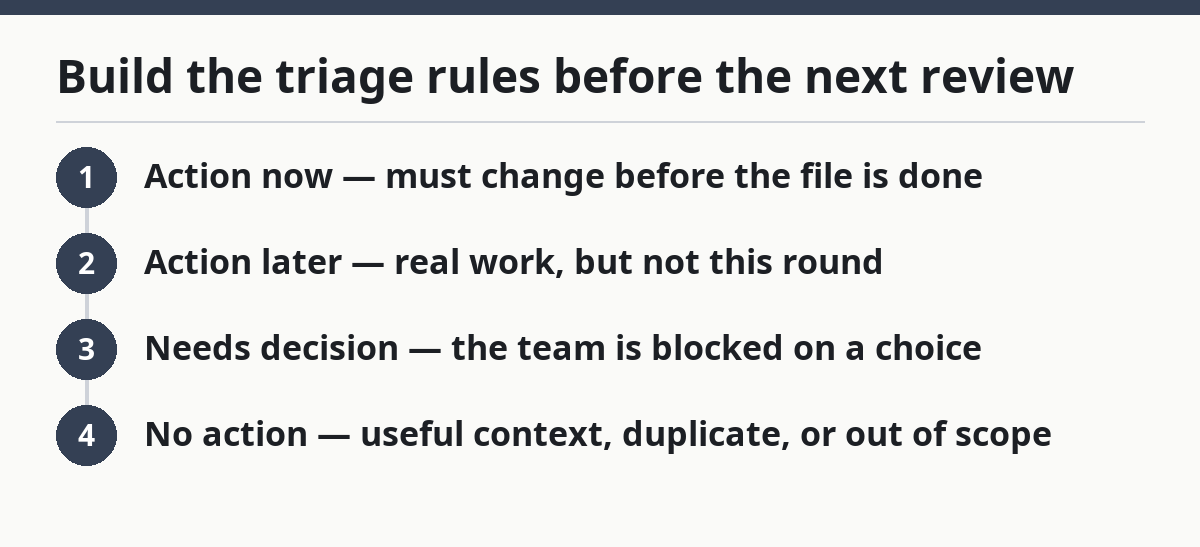
Start with four labels. Keep them plain:
- Action now — must change before the file is done
- Action later — real work, but not this round
- Needs decision — the team is blocked on a choice
- No action — useful context, duplicate, or out of scope
Then define who can close each type. A comment should not stay open just because nobody wants to click “resolve.” If the note is a duplicate, close it. If it is a style preference with no product impact, mark it no action. If it needs an implementation task, move it into the issue tracker and link it back to the file.
Set a short SLA for triage. 24 hours is a good internal target for active design reviews because it keeps the file from aging into a backlog. If your team reviews less often, pick a number that fits the cadence and write it down.
Common rules that save time:
- One comment = one decision, unless two comments are clearly the same issue
- The design owner makes the final call if reviewers disagree
- A comment that asks for a change must name the object or screen it affects
- A comment that repeats a known issue gets merged, not handled twice
The trade-off is speed versus nuance. Tight rules move faster, but they can flatten edge cases. Loose rules feel fairer, but they leave the file messy. For most product teams, tight and visible wins.
Which comments need action, and which don’t?
Comments need action when they change the design, affect shipping risk, or block a decision. Picture this: a reviewer says, “This feels off,” and another person says, “Change the spacing.” One of those is a useful task, and one is just noise unless it comes with a reason.
A fast triage pass usually asks three questions:
- Does this comment require a design change?
- Does it require a product, content, or engineering decision?
- Would shipping without action create rework?
If the answer to any of those is yes, it needs a path out of the comment thread. That path can be a Figma reply, a resolved comment, or an item in the issue tracker.
Use this simple filter:
- Fix now: copy, spacing, interaction, accessibility, broken state
- Decide now: content choice, behavior choice, scope choice
- No action: preference with no user or product cost
- Park it: a good idea for a later version
The most expensive mistake is treating every comment as equally urgent. That bloats review time and teaches the team to ignore comments that matter. The second mistake is closing everything too fast. That creates fake agreement and pushes decisions into Slack.
One useful rule: if a comment can’t be turned into a task sentence, it probably isn’t ready to act on. Try writing it as “Change X because Y.” If that sentence sounds weak, the note may be a discussion point, not a task.
How do you close feedback loops in design reviews?
You close feedback loops in design reviews by tying each comment to a named decision, a resolved thread, or a tracked issue. Picture this: the review is over, the file looks clean, and nobody is wondering whether the same concern needs to be raised again next week.
Closing the loop has three parts. First, answer the comment in Figma if the fix is simple. Second, resolve the thread when the action is done or the note is out of scope. Third, if the work belongs elsewhere, create or link an issue and say where it lives.
Use this closure rule:
- Resolved in file: the design change is visible in the mockup
- Resolved in issue tracker: the work is too large for the current file
- Closed with reason: the note is duplicate, outdated, or no longer relevant
This is where review ownership matters. The design owner should not wait for someone else to close the thread. If the owner is absent, triage stalls and comments pile up. Assign a backup for weeks when the owner is out.
A simple practice helps here: every unresolved comment gets a next step and a date. That can be as small as “revise by Thursday” or “move to backlog after launch.” Without a date, a comment is just a memory.
The best part is that closure gets easier once the team sees that “resolved” does not always mean “changed.” It can mean answered, linked, or parked with a reason.
Keep duplicate feedback from clogging the file
You keep duplicate feedback from clogging the file by merging similar comments before the team debates them twice. Picture this: three reviewers all point at the same modal spacing issue, but each one writes a slightly different version. Now the file has three threads and one problem.
Duplicate feedback is normal in design review. It gets messy when nobody consolidates it. The fix is to scan for repeats before you start replying, then pick one thread as the source of truth.
A good duplicate pass looks like this:
- Find comments on the same screen, object, or state
- Merge repeated wording into one canonical note
- Reply once with the chosen action
- Close the extra threads with a short reason
This matters most in larger files or high-traffic review weeks. If you leave duplicates open, the comment count stops meaning anything. A file with 20 notes can be cleaner than a file with 8, if the 8 are distinct and owned.
The trade-off is that duplicates can hide agreement. If three people raise the same issue, that often means the problem is real, not that the comments are wrong. The right move is not to keep all three threads open; it is to collapse them and keep the signal.
A practical rule: if two comments would lead to the same design change, treat them as one issue. If they point to different causes, keep them separate. That line is simple, but it saves a lot of review drag.
A simple Figma triage workflow you can copy
A simple Figma triage workflow follows the same order every time: collect, sort, assign, decide, and close. Picture this: the review ends, and you have one hour to turn a pile of comments into clear next steps without creating another meeting.
Use this order in a weekly or per-review pass:
- Open the Figma file and list every new comment.
- Mark each one as action now, action later, needs decision, or no action.
- Assign each action item to the design owner or the right teammate.
- Send implementable items to the issue tracker.
- Resolve comments that are done, duplicated, or out of scope.
- Leave open only the notes that truly need another round.
A shared triage session can be short. 15 minutes is enough for a small file if the labels are already known and the design owner is present. Longer than that, and the meeting turns into a second review.
What makes this workflow work is consistency, not ceremony. If every file gets the same labels and the same closeout rule, the team stops arguing about process and starts arguing about design, which is where the work belongs.
This page fits inside the larger Figma workflow systems guide for product teams, but it stands on its own as the process for comment triage. It is the part that keeps feedback from turning into unowned backlog.
Common mistakes that make triage fail
Triage fails when comments are sorted by volume instead of by ownership, because the loudest note wins and the rest drift. Picture this: a reviewer comments on five screens, but nobody knows which thread belongs to engineering, content, or design.
The most common mistakes are easy to spot:
- No owner: every comment is everyone’s job, so nothing moves
- No labels: action and noise look the same
- No closure rule: threads stay open after the decision is made
- No tracker link: work disappears after the review
- No duplicate pass: the same issue gets discussed three times
Each one has a cost. No owner creates delay. No labels create confusion. No closure rule creates clutter. No tracker link creates lost work. No duplicate pass wastes attention.
The fix is boring, and that’s good. Put ownership in writing, use the same few labels every time, and make resolution part of the workflow, not a nice-to-have. A process that takes 2 extra minutes per comment is still cheaper than a week of rehashing.
Who should skip this: a one-person design workflow with almost no cross-functional review. A lighter notes-and-reply habit will be enough there, and a formal triage layer will only add friction.
The verdict is simple: if your Figma comments are regularly left open after the review, you don’t need more comments. You need a triage rule that tells the team what to do with them.
How do you organize design feedback in Figma?
You organize design feedback in Figma by giving every comment an owner, a label, and a next step. The easiest setup is a short triage pass after review, where comments are sorted into action now, action later, needs decision, or no action. That keeps the file readable and stops notes from drifting into Slack.
How do you decide which comments need action?
You decide which comments need action by asking whether the note changes the design, affects a decision, or creates rework if ignored. If the answer is yes, it needs a path to the design owner or the issue tracker. If it is only a preference, it can usually close with a short reason.
How do you close feedback loops in design reviews?
You close feedback loops in design reviews by resolving the comment, linking it to a tracked task, or marking it closed with a reason. The important part is that every thread ends with a visible outcome. Without that, the same feedback comes back in the next review and burns time again.
Drafted with AI; not yet reviewed by a person.