Last updated: November 19, 2026
Quick Answer: set up a Figma design review session in 4 steps: choose the exact file, save a named version, share one review link, and define the comment and approval rules.
How to Set Up Design Review Sessions in Figma works best when every reviewer opens the same file, sees the same checkpoint, and knows who can approve the result. The steps below show how to keep comments, stakeholder feedback, and sign-off tied to one version.
Key Takeaways
- Start with a file people can open quickly, then end with one clear approval decision.
- Prepare the file, share the right link, and set comment rules before the meeting starts.
- The review link should open the current file, and version history should identify the exact checkpoint.
- Comments should point to one frame, one layer, or one issue so they are easier to resolve.
What a solid Figma review session needs
A good Figma Design Review starts with a file people can open in 10 seconds and ends with a clear approval decision. If the setup is sloppy, people comment on the wrong screen, repeat old feedback, or approve a stale frame.
You do not need a fancy process. You need three things: a review link, a version label, and a rule for who can close the loop.
A useful setup is boring in the right way. It makes it obvious where to look, where to comment, and what counts as done.
Without a checkpoint, a review turns into a group chat in a canvas.
- Review link: one share link for the exact file or branch under review
- Version reference: a named checkpoint, like “Homepage review v3”
- Approval owner: one person who marks the review as accepted or needs changes
- Comment rule: feedback must point to a frame, layer, or section
- Close-out rule: old comments get resolved before the next review
A review session is not the same as a loose file drop. It needs a start point and an end point.
If you skip that, the session never really finishes.
How do you set up a Figma design review session?
You set up a Figma design review session by preparing the file, sharing the right link, and defining how people should comment before the meeting starts. The cleanest flow uses 4 steps and ends with a decision, not just notes.
Picture this: you’re about to invite stakeholders into Figma, and you want them to react to the current layout, not last week’s draft. You also need the comments to land in one place, so the team doesn’t spend the next day chasing feedback across Slack and email.
That means setup comes first.
- Choose the exact file or branch. Open the Figma file that matches the work under review and make sure the right pages and frames are visible. When this is right, the file title and canvas match the feature or flow you want feedback on.
- Create a named version. Save a version in Figma and give it a clear label such as the date, milestone, or review round. When it works, the version history shows a checkpoint anyone can point back to later.
- Share one review link. Send the link for that file or version to the review group instead of passing around screenshots. When this is set, people open the same source and comments stay attached to the design itself.
- Set the review rules. Tell reviewers what kind of feedback you want: usability issues, content questions, visual polish, or approval. When it works, people know whether they are critiquing the idea or checking for final sign-off.
A useful review session has a single purpose. If you are collecting approval, say so. If you are still shaping the layout, say that too.
That line saves time.
What should be in the review link and version history?
The review link should open the current file, and the version history should show the exact checkpoint people are discussing. That pairing keeps the review anchored to one point in time instead of drifting across edits.
Picture this: someone opens the design on Monday, comments on a header, and by Wednesday the header is gone. Without a version reference, no one can tell whether the feedback still matters. With version history, you can point to the saved state and say, “That’s the one we reviewed.”
That is the whole trick.
Use Figma’s version history for the review record and your share settings for access. The review link answers “where do I look?” The version answers “what exactly did I review?”
If those two do not match, feedback gets messy fast.
- Save a version before the session starts
- Name it so a teammate can recognize it later
- Share the file or specific review link with the reviewers
- Use the version label in meeting notes and decision logs
- Return to that version if a later change raises a question
Here’s the catch: a version label is not decoration. It is the anchor that lets you compare one round of feedback to the next.
Without it, every comment sounds newer than it is.
For teams that review often, this habit matters more than the meeting itself. A clean version trail makes it easier to see which suggestions were accepted, which were deferred, and which were fixed in the next round.
That is the difference between a tidy process and a pile of opinions.
How should comments work in Figma?
Comments in Figma should point to one frame, one layer, or one issue at a time, because broad comments are hard to resolve. If a comment can’t be tied to a specific spot on the canvas, it usually leads to a second round of clarification.
Picture this: a stakeholder writes “make this clearer,” and nobody knows whether they mean the button label, the flow, or the copy above the fold. One comment has now created three side conversations.
That is avoidable.
Use comments for feedback that needs to stay attached to the design. In a review session, ask people to comment on the exact thing they want changed and to say what kind of change they mean.
A comment like “button text is too vague for first-time users” is useful. “Feels off” is not.
- Point comments at the right frame or object
- Keep one thought per comment
- Mention the desired outcome, not just the problem
- Resolve comments only after the change is made or rejected
- Use a short reply thread when the fix needs clarification
A comment workflow also needs a rule for moving on. If a comment is accepted, resolve it. If it is still open, leave it open until the next version shows the change.
That sounds simple because it is.
A short thread keeps the review from turning into a memory test. People can reopen the note later and see exactly what changed.
No guessing.
What feedback should stakeholders give during the review?
Stakeholders should give feedback on the goal, the user impact, and the business risk, not on every visual preference they have. If everyone weighs in on color and spacing, the session fills up with noise and the real decision gets buried.
Picture this: product, marketing, and design are all in the same review, and each person notices a different problem. If no one names the priority, the meeting becomes a long list of opinions with no owner.
A review session needs a ranking.
Ask stakeholders to use 3 kinds of feedback:
- Does this solve the user problem?
- Does it match the business goal?
- Is anything unclear, missing, or risky?
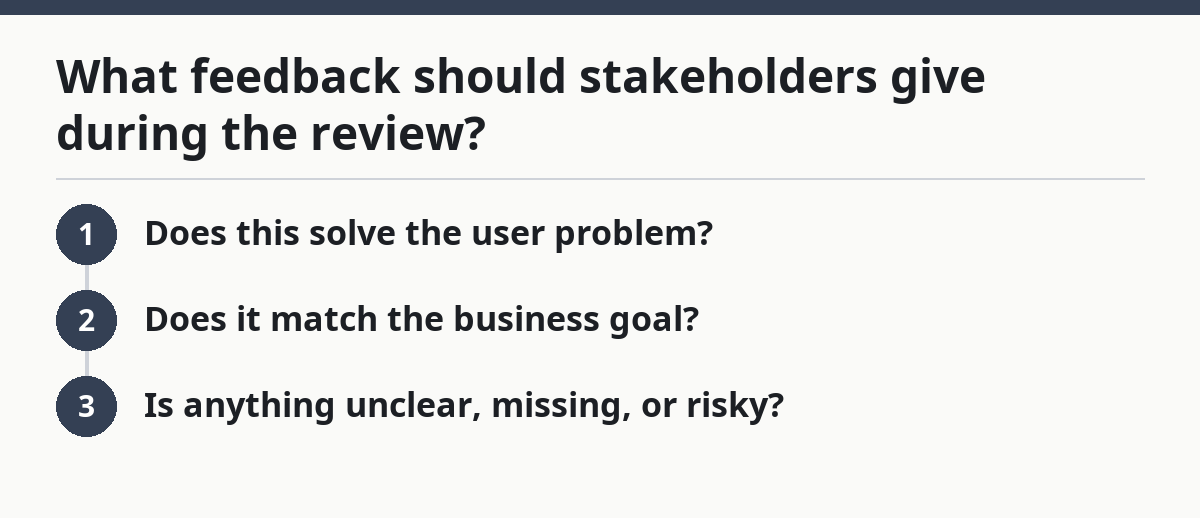
That frame keeps the discussion useful. It also makes it easier to separate strategic feedback from local polish. A stakeholder can say, “This screen supports the signup goal,” or “This flow adds one extra step we should check,” without derailing the whole review.
One useful rule is to reserve final judgment for the approval checkpoint. During the session, stakeholders can flag issues, but they should not treat every note as a final verdict; if a comment affects legal, compliance, or medical decisions, consult the right professional and check an authoritative source such as the U.S. Small Business Administration or your organization’s policy before acting on it.
That keeps the meeting honest.
What approval checkpoint should you use?
The approval checkpoint should be a named step where one person, or one defined group, says the design is approved, needs changes, or is blocked. Without that checkpoint, review sessions end in vague agreement that never turns into action.
Picture this: the meeting ends, nobody says “approved,” and three days later someone asks whether the file is ready to move forward. If there is no checkpoint, the answer is often fuzzy.
That costs time.
Use a simple approval path:
- Ready for review: the file is complete enough to show
- Needs changes: feedback is collected and work remains
- Approved: the reviewer or owner accepts the version
- Blocked: a missing decision or dependency stops the file
Those labels give the team a common language. They also make it easier to track what happened after the session. If a design is approved, move it out of the review loop. If it needs changes, save the next version and review again.
That closure matters.
The biggest mistake here is mixing review and approval in the same breath. A draft can be reviewed without being approved. A polished screen can still need legal, content, or product sign-off.
Do not blur those stages.
How do you keep review sessions repeatable?
You keep review sessions repeatable by using the same structure every time: prepare the file, save a version, share one link, collect comments, and close with an approval call. That routine should take the guesswork out of every round.
Picture this: the team is moving through the fourth review of a feature, and everyone already knows where to look, how to comment, and who signs off. The meeting runs faster because nobody is re-learning the process.
That is what repeatable looks like.
A reusable checklist works better than a long doc. Keep it short and consistent:
- Save the version before the session
- Add the version name to the invite
- Confirm the reviewers and approval owner
- Set the comment rule at the top of the meeting
- Resolve old comments before new ones start
- End with a clear status and next step
You can also tie the review to your broader team setup. The Figma for Product Teams hub is the right place to connect this process to the rest of the workflow without turning this page into a file-organization guide.
That link belongs nearby, not inside the review steps.
The truth is, the session itself is only half the system. The other half is the paper trail: version names, comments, and the final status.
That trail is what keeps the next review from starting at zero.
Common mistakes that break Figma review sessions
The most common mistakes are sharing the wrong file, leaving comments unassigned, and ending the review without a decision. Those mistakes don’t just slow things down—they make the next session harder to trust.
Picture this: a review starts with a stale link, people comment on an older draft, and the team later copies those notes into a new version. Now two versions of the truth are floating around.
That’s a mess.
Here are the mistakes that matter most:
-
No version label
Cost: nobody knows which draft was reviewed.
Do this instead: save a version before the session and name it clearly. -
Open-ended feedback
Cost: comments turn vague and hard to act on.
Do this instead: ask for one issue per comment and one requested change. -
No approval owner
Cost: the team waits for a decision that never arrives.
Do this instead: assign one person to close the loop. -
Mixing old and new comments
Cost: people reopen solved issues and duplicate work.
Do this instead: resolve completed threads before the next round.
A session that ends with “let’s circle back” is not a finished review. It is postponed work.
Keep the checkpoint visible.
FAQ
How do comments work in Figma?
Comments in Figma attach to a specific spot on the canvas, which makes them easier to track than loose feedback in chat. The first sentence should name the exact issue, because that is what the thread will be remembered by later. Keep the reply thread short and resolve it when the change is complete or rejected.
How do you collect feedback in Figma?
You collect feedback in Figma by sharing one review link, asking people to comment in the file, and giving them a clear rule for what to review. The first sentence should set the scope, such as usability, copy, or visual polish. That keeps the session from turning into a catch-all for every opinion in the room.
What is the way to run a design review?
Use one version, one comment workflow, and one approval checkpoint. The first sentence should say whether the session is for critique or sign-off. That simple frame keeps stakeholders focused and makes the result easy to record.
Drafted with AI; not yet reviewed by a person.